
Clients
Everyone you bill, what each one owes, their account statement, and how quickly they pay.
#The client list
Clients in the sidebar opens a list of everyone you sell to. Use it to see at a glance who owes you money, to open one client's account, and to keep their address and GSTIN ready for the next invoice.
Every client you have saved, and every name you have ever invoiced, appears as a card. The clients who owe you the most are at the top, so the people to call first are always first.
The buttons at the top of the screen:
| Button | What it does |
|---|---|
| Import CSV | Adds many clients at once from a spreadsheet. See Importing clients. |
| Add Client | Opens the client form for a new client. See Adding and editing a client. |
| New Invoice | Opens a blank invoice. |
Search clients... finds a client by any part of the name, in small or capital letters. The cross clears the search. If nothing matches, or you have no clients yet, you see No clients found. and a Add Your First Client button.
Your client list is shared by all your businesses, since the same customer may buy from each.
#What a client card shows
| On the card | Meaning |
|---|---|
| Letter in a circle | The first letter of the name. |
| Name | The client's name, exactly as written on the invoices. |
| N invoices | state | GSTIN | How many sales and credit notes they have, then the state and GSTIN of a saved client. |
| Total | Everything you have billed them, less credit notes. |
| Paid (green) | What they have paid you on those invoices. |
| Outstanding (red) | What they still owe. TDS that the client deducted is not counted as owed, since they pay it to the government for you. Green ₹0 means all settled. |
| Overpaid (blue) | Shown instead of Outstanding when they paid more than they were billed. The extra can be used on their next invoice. |
| View / Hide | Click anywhere on the card to open or close the client's account. |
Only real sales count in these figures: Tax Invoices, Bills of Supply and Composition bills. Credit notes are subtracted. Quotations, proformas, delivery challans and cancelled invoices are left out, because nobody owes money on them.
#Names you invoiced but never saved
An invoice can go to a name that is not in your saved list, for example a walk-in customer. That name still gets a card, so you can see what they owe, but it shows no state or GSTIN. Open the card and click Save as Client at the bottom to save them: the form opens with the name filled in.
One client shows as two cards. Cards are matched by name. "Sharma Traders" and "Sharma Traders Pvt Ltd" are two different names, so they make two cards. If you renamed a saved client, old invoices keep the name they were made with and stay on a card of their own. Small and capital letters do not matter.
A client is missing. Clear the search box. A client with no saved record and no invoices does not exist yet: add them with Add Client.
#Adding and editing a client
Save a client once and you never type their details again: on a new invoice, pick them from the list under Client Name and their address, state, GSTIN and preferences are filled in.
- Open the formClick Add Client at the top of the Clients screen. To change a saved client, open their card and click Edit Client. The same form opens from the invoice screen, from the pencil next to a saved client or when you save a new one there.
- Fill in the nameClient / Business Name is the only required field. Use the name you want printed on the invoice.
- Address and stateFill in the address, choose the country (it starts as your own) and the state. The state decides whether GST is CGST + SGST or IGST, so get it right.
- GSTINFor a registered business, type their 15-character GSTIN. When you click out of the box it is checked (see below).
- SaveClick Save Client, or Update Client when editing. You see "Client added" or "Client updated" and the card appears in the list. Cancel or the cross at the top closes the form without saving.
The fields:
| Field | What to know |
|---|---|
| Client / Business Name * | Required. If it is blank, nothing is saved. |
| Address | Street address and locality, printed on the invoice. |
| Country | Starts as your own business's country. Changing it clears the state, since each country has its own list. A client outside India is billed as an export, charged as IGST: see How GST is worked out. |
| City | Printed with the address. |
| PIN Code | The label changes with the country, such as ZIP Code or Postcode. |
| State | A list for India; a text box for countries without a list. The label changes with the country too, such as Emirate or County. |
| GSTIN | The client's GST number. Leave it blank for an unregistered customer (a B2C sale). For other countries the box asks for their tax number, such as TRN or VAT Number. |
| Used as the "To" address when you email an invoice from the client's account. | |
| Phone | Used for WhatsApp. Write it with the country code, such as +91 98765 43210. |
| SEZ unit / Developer | India only. See SEZ clients. |
| Print preferences (optional) | Preferred paper size, currency and auto-print for this client. See Print preferences. |
Changing a client's details does not change invoices already made: each invoice keeps the details it was saved with. To correct one, open it, pick the client again under Client Name, and save.
#Clients abroad
Pick the client's country. For a country other than India:
- No GSTIN and no state are needed. The state box is marked optional, and the postal code box takes that country's name for it (ZIP Code, Postcode...).
- The tax ID box is named after their country's tax ID (VAT Number, EIN / TIN, TRN...). If the client gave you one, type it: it prints on the invoice with that name. It is optional.
- Their country prints under their address, and the place of supply prints as Outside India (country), because an export is supplied outside India.
- Preferred currency lists every currency the app knows. Left blank, invoices to them start in their country's currency. See Billing in another currency.
Billing such a client is an export: see Exports and foreign clients and LUT.
#The GSTIN check
A GSTIN is the 15-character GST number of a registered business. Its first two digits are the state code (03 is Punjab, 27 is Maharashtra), the next ten are the PAN, and the last is a check character. When you click out of the GSTIN box, the app reads it. This works offline; nothing is looked up on the GST portal.
| What happens | Meaning |
|---|---|
| The State fills in by itself | The state was blank, so it was taken from the first two digits. |
| ⚠ GSTIN format looks unusual. Expected like: 22AAAAA0000A1Z5 | It is not 15 characters in the GSTIN pattern. Check for a missing or extra character, or the letter O typed for zero. |
| ⚠ This GSTIN fails its own checksum — check for a typo. | The pattern is right but the last character does not add up, so a character is almost certainly mistyped. |
| ⚠ This GSTIN is registered in state, but the state says other state. | Either the GSTIN or the state you chose is wrong. Check with the client. |
The box turns amber while there is a warning. Warnings never stop you saving. Small letters are turned into capitals as you type. The same check runs on the invoice: see What the GSTIN check tells you.
#Why the state matters (place of supply)
The place of supply is where a sale is treated as happening for GST. For most sales it is the client's state:
- Client in your own state: the invoice charges CGST + SGST (half each).
- Client in another state, an SEZ, or abroad: the invoice charges IGST.
A wrong state on the client quietly gives the wrong tax on every invoice to them, and puts the sale in the wrong place in GSTR-1. If goods go somewhere other than the client's address, set Place of Supply on that invoice instead. See How GST is worked out and the glossary.
IGST where you expected CGST + SGST, or the other way round: check the client's state here, your own state in Settings, and the place of supply on the invoice. See The invoice has the wrong tax split.
#SEZ clients
Tick SEZ unit / Developer for a client in a Special Economic Zone. Supplies to them are charged IGST whatever their state, even if they are in your own state (section 16 of the IGST Act). The box only shows when the country is India.
#Print preferences
Some clients always want the same thing: a thermal receipt, an A5 bill, or an invoice in dollars. Set it once here and every new invoice for them starts that way. All three are optional; leave them blank to use your normal settings.
| Field | What it does |
|---|---|
| Preferred paper size | A4, A5, US Letter, 80mm or 76mm thermal and the other sizes. Use app default keeps your usual size. |
| Preferred currency | INR, USD, EUR, GBP, AED, SGD or AUD. Use invoice default keeps the invoice's normal currency. |
| Auto-print on save for this client | Sends the invoice to the printer each time you save one for this client, even if auto-print is off in Print Settings. |
They are applied when you pick this client on a new invoice. You can still change them on that invoice.
The app also learns: each time you save an invoice for a saved client, the paper size and currency that invoice used become the client's preferred ones. So if you change one invoice to thermal, the next one for that client starts as thermal too.
#A client's account
Click a client's card to open their account. It shows everything about this one client in one place.
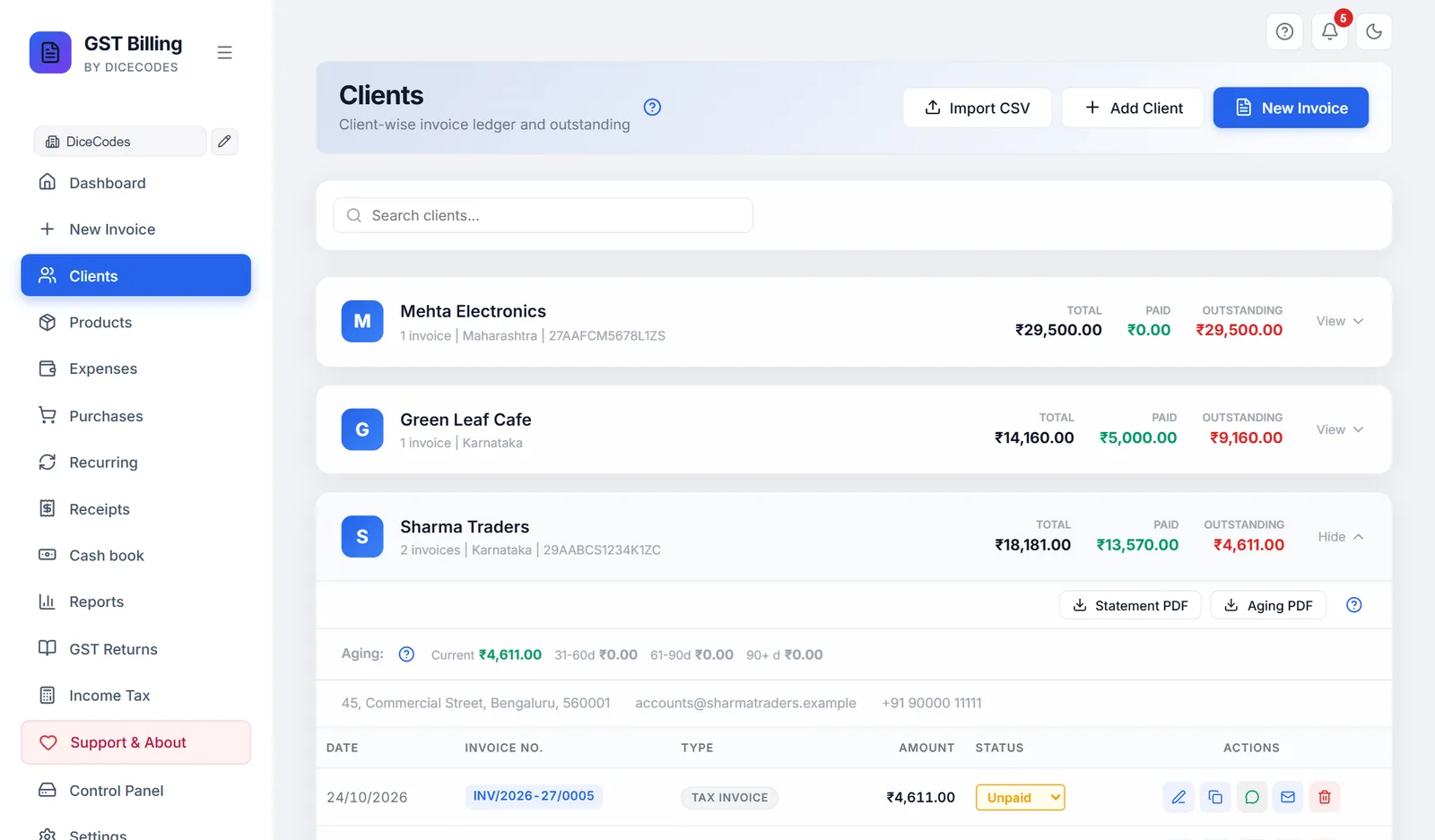
From top to bottom:
- Statement PDF and Aging PDF: see Statement and ageing PDFs.
- The Aging strip, when they owe you anything: see Ageing.
- Their address, email and phone, if saved.
- All their invoices, newest first.
- Edit Client and Delete Client, or Save as Client.
A client with no invoices shows No invoices for this client yet. and a Create Invoice button.
#The invoice rows
Each row has the Date, Invoice No., Type (Tax Invoice, Quotation, Credit Note and so on), Amount, Status and these buttons:
| Button | What it does |
|---|---|
| Edit Invoice (pencil) | Opens the invoice on the invoice screen to change it. |
| Duplicate Invoice | A new invoice with the same client and items, a new number and today's date. |
| Opens WhatsApp with a short message: invoice number, amount, date and status. It goes to the phone number saved on that invoice. The PDF is not attached; send it from the invoice screen if you need it (see WhatsApp). | |
| Opens your email program with a message about the invoice, addressed to the client's saved email. | |
| Delete Invoice (bin) | Asks first, then moves the invoice to the Trash for 30 days and puts its stock back. |
A row past its due date and not paid is highlighted as overdue.
Deleted by mistake? Restore it from Settings, Trash bin within 30 days. For an invoice already given to the client, cancel it on the Dashboard instead of deleting, so its number stays in your records.
#Changing the status
The coloured box in the Status column is a dropdown: Unpaid, Partial, Paid or Overdue. It works as on the Dashboard:
- Paid records a payment for the rest of the balance, so the client's Paid and Outstanding update.
- Unpaid on a paid invoice takes back the payment that marking it Paid recorded. Payments you recorded yourself stay.
- Partial and Overdue only change the label. To record part of a payment with its amount and mode, use the ₹ button on the Dashboard.
A cancelled invoice shows Cancelled and cannot be changed here; undo the cancel from the Dashboard. See Status.
#Edit, delete or save the client
| Button | What it does |
|---|---|
| Edit Client | Opens the client form with their details. |
| Delete Client | Asks Remove this saved client?, then removes them from your saved list. Their invoices stay untouched, and the name still shows as a card while it has invoices. You can add them again any time. |
| Save as Client | Shown instead of the two above for a name you invoiced but never saved. Opens the form with the name filled in. |
WhatsApp opens but not to the client's chat. The phone number on the invoice needs the country code: 919876543210 or +91 98765 43210, not just 98765 43210. Fix it with Edit Client. For an invoice already made, open it, pick the client again under Client Name and save, so it carries the new number.
Email opens with an empty "To". The client has no email saved. Add it with Edit Client.
#Ageing: who is slow to pay
When a client owes you money, an Aging strip under the PDF buttons splits what they owe by how late it is:
| Group | Holds unpaid amounts that are |
|---|---|
| Current (green) | Not yet due, or up to 30 days past due |
| 31-60d (amber) | 31 to 60 days late |
| 61-90d (orange) | 61 to 90 days late |
| 90+ d (red) | More than 90 days late. Call these first. |
Lateness is counted from the invoice's due date, or from the invoice date when it has none. Only unpaid sales are counted; TDS the client deducted is not. The strip is hidden when nothing is owed.
The strip adds up unpaid invoices one by one, and does not take credit notes off them. So if the client has a credit note, the strip can total more than Outstanding on the card.
To see ageing for all clients together, use Reports, Outstanding or Party Outstanding.
#Statement and ageing PDFs
Two buttons at the top of an opened client make PDFs you can send them or keep. Each one downloads straight away, and you see "Statement PDF generated" or "Aging report for name downloaded". If you set your own PDF colours in Print Settings, the coloured bands and lines follow them.
#Statement PDF
The client's whole account, like a bank passbook. Send it when a client disputes a bill or asks "how much do I owe?". It contains:
- Your business (FROM) and theirs (BILL TO), with addresses and GSTINs.
- A summary: Invoices, Total Billed, Paid and Outstanding.
- A table with Date, Particulars (number and type), Debit, Credit and Balance, oldest first. Each invoice is a debit. Under it, what was paid against it shows as Payment recd against above, and TDS they deducted as TDS deducted by client, both as credits. A credit note is a credit.
- The running balance after each line, marked Dr (they owe you, in red) or Cr (you owe them, in green), and the CLOSING BALANCE.
- A line for your signature and a note asking them to confirm within 7 days.
It covers all their invoices, from an opening balance of zero. Quotations, proformas, challans and cancelled invoices are left out. Amounts print as "Rs." because the PDF font has no ₹ sign. The file is named like statement-Sharma-Traders-2026-10-29.pdf.
#Aging PDF
Only what is still unpaid, for collection calls. It lists each unpaid invoice with its Invoice #, Date, Due date, Age in days, Total and Outstanding. Amounts more than 60 days old are in red. Below the list, an AGING SUMMARY gives the four groups (0–30, 31–60, 61–90 and 90+ days) and the TOTAL OUTSTANDING. The file is named like Aging-Sharma_Traders-2026-10-29.pdf.
"No invoices for this client" or "name has no outstanding balance.": there is nothing to put in that PDF. A paid-up client has no Aging PDF.
Nothing downloads: your browser may be asking where to save, or blocking downloads from the app. Allow downloads, then click again.
The balance looks wrong: check that each payment was recorded on the right invoice, and that quotations were converted into invoices. See Recording a payment.
#Importing clients from a spreadsheet
Moving from another program or an Excel list? Import CSV adds many clients at once, one per row.
- Open the windowClick Import CSV on the Clients screen. The window Import clients from CSV opens.
- Get the sample fileClick Download sample file.
Clients-sample.csvlands in your Downloads folder, with the right column headings and two demo clients. - Fill it inOpen it in Excel or Google Sheets. Replace the demo rows with your clients, one per row. Keep the first row (the headings) as it is.
- Save as CSVIn Excel, File → Save As → CSV UTF-8 (Comma delimited) or CSV (Comma delimited). In Google Sheets, File → Download → Comma-separated values.
- Choose the fileClick Choose CSV file. Nothing is saved yet: the window shows how many clients are ready and how many are already in your list (skipped).
- ImportClick Import (such as Import 12). You see "Imported 12 clients", and the new cards appear.
The columns (headings in small or capital letters, in any order):
| Column heading | Holds |
|---|---|
Name (or Client, Client Name, Customer) | Required. Rows without a name are skipped. |
GSTIN | Optional. Leave blank for a client without GST. |
Phone (or Mobile), Email | Optional |
Address | Optional |
State | Optional. Write it in full, as in the app's list (Punjab, not PB). |
The sample file looks like this:
Name,GSTIN,Phone,Email,Address,State
Demo Traders,27AAAAA0000A1Z5,9800000001,accounts@demo-traders.example,"Shop 4, Demo Market, Pune",Maharashtra
Sample Studio,,9800000002,hello@sample-studio.example,"12 Sample Street, Kolkata",West Bengal
Clients you already have (same name, any capitals) are skipped, and so are repeats inside the file, so importing the same file twice is safe. Other columns, such as city or PIN, are ignored: add them later with Edit Client. Imported GSTINs are not checked; open the client and click into the GSTIN box and out again to check one.
Old invoices are imported on the Dashboard, with CSV import / export: it can add their clients to this list at the same time. See Importing and exporting invoices as CSV.
Nothing is read: the file is not a plain CSV, or the headings are not in the first row. An .xlsx file renamed to .csv does not work. See A CSV import did not work.
An address with a comma in it must be inside double quotes, "12, MG Road". Excel does this for you when it saves as CSV.