
GST returns
GSTR-1 and GSTR-3B built from the invoices, purchases and expenses you have already entered, checked against GSTR-2B, and ready to upload to the GST portal.
The app works out the figures and makes the files. It does not log in to the GST portal. Filing is always done by you, or your CA, on gst.gov.in. Open the screen from GST Returns in the sidebar.
#GST words on this screen, in plain language
You do not need to be an accountant to use this screen. These are the words it uses. The glossary has more.
| Word | What it means for you |
|---|---|
| GSTR-1 | The return that lists your sales: who you billed, how much, and the GST on it. Filed every month (by the 11th) or every quarter under QRMP (by the 13th after the quarter). |
| GSTR-3B | The short summary return where you pay the tax: GST collected on sales, less the GST you paid on purchases. Filed by the 20th (monthly) or the 22nd/24th after the quarter (QRMP), depending on your state. |
| GSTR-2B | A statement the portal makes for you every month, listing the purchase invoices your suppliers have reported. It shows which purchase GST you can claim back. |
| B2B | Business to business: a sale to a client who has a GSTIN. Reported invoice by invoice, because your client claims credit for that GST. |
| B2C | Business to consumer: a sale to someone with no GSTIN (a walk-in customer, a person, an unregistered shop). Mostly reported as totals, not invoice by invoice. |
| B2C Large (B2CL) | An inter-state B2C invoice above ₹1 lakh (₹2.5 lakh for invoices dated before 1 August 2024). These are reported one by one. |
| GSTIN | The 15-character GST number, such as 27ABCDE1234F1Z5. The first two digits are the state code (27 is Maharashtra). |
| CGST, SGST, IGST | Inside your own state, GST is split half Central (CGST) and half State (SGST, or UTGST in a Union Territory). To another state, it is one Integrated tax (IGST). The app decides this from your state and the place of supply. |
| Place of supply (POS) | The state the sale is treated as made in, usually the buyer's state. It decides CGST + SGST or IGST, and which state gets the tax. Shown as a code, such as 10 for Bihar. |
| Intra-state / Inter-state | Intra: you and the place of supply are in the same state (CGST + SGST). Inter: different states (IGST). |
| ITC (input tax credit) | The GST you paid on purchases and business expenses. You subtract it from the GST you collected, and pay only the difference. |
| HSN / SAC code | The official code for what you sell: HSN for goods, SAC (starts with 99) for services. GSTR-1 needs a summary by code. |
| Credit note / debit note | A credit note reduces an invoice you already issued (goods returned, a discount after the sale). It lowers your tax. A debit note increases one. The app makes credit notes. |
| Reverse charge (RCM) | A few supplies where the buyer pays the GST instead of the seller, such as goods transport (GTA) or legal services. |
| Zero-rated | Exports and sales to SEZ units. Taxed at 0%, or IGST paid and later refunded. |
| QRMP | Quarterly Return, Monthly Payment: small businesses (up to ₹5 crore turnover) can file GSTR-1 and GSTR-3B every quarter. |
| NIL return | A return for a period with nothing to report. It is still compulsory. |
#Choosing the period
The row at the top, next to GST Returns, chooses the period every tab shows. It opens on the current month.
| Control | What it does |
|---|---|
| First list: Monthly, Quarterly (QRMP) or Full Year | How long the period is. Pick Monthly if you file every month, Quarterly (QRMP) if you file every quarter. |
| Month and year (Monthly) | January to December, and a year from this year back five years. |
| Quarter and year (Quarterly) | Q1 (Apr–Jun), Q2 (Jul–Sep), Q3 (Oct–Dec) or Q4 (Jan–Mar). The year is the calendar year of those months, so the Jan–Mar 2027 quarter is Q4 with 2027, and Apr–Jun 2026 is Q1 with 2026. |
| Financial year (Full Year) | A financial year, such as FY 2026-27 (April to March). Useful for checking a whole year, or for your CA. |
| R1 Pending / R1 Filed and 3B Pending / 3B Filed | Whether you have filed GSTR-1 and GSTR-3B for this period. Click to switch. See Filed status. |
| GST Portal | Opens gst.gov.in in your browser. |
An invoice, purchase or expense belongs to the period of its date. Everything shown is for the business selected at the top of the sidebar only: each GSTIN files its own returns.
The files the app makes carry the return period the portal expects: the month for a monthly return, the last month of the quarter for a quarterly one (Q1 2026 is 062026), and March of the closing year for a full year.
Figures look empty or too small? Check the period type (Monthly or Quarterly) and the year first: Jan–Mar is Q4 with the new calendar year. Then check the business in the sidebar. See "No data to export for this period".
#What is included
- Tax tables (GSTR-1 and GSTR-3B) use tax invoices and credit notes only.
- Left out of the tax tables: proforma estimates, quotations, bills of supply, composition bills, delivery challans, and cancelled invoices.
- Document Summary (Table 13) also counts bills of supply, composition bills, delivery challans, and cancelled documents, as the portal asks. See Document Summary.
- B2B or B2C is decided by the client: a client with a GSTIN is B2B, one without is B2C.
- Exports (a client whose country is not India) are kept out of B2B and B2C and listed in the red box. See Exports and SEZ.
- Input tax credit comes from your purchase bills and expenses with GST dated in the period.
- Only the selected business: invoices, purchases and expenses of other businesses you keep in the app are never mixed in.
This screen prepares GSTR-1 and GSTR-3B for a regular GST business. It does not make CMP-08, GSTR-4 (composition), GSTR-9 (annual) or TDS/TCS forms. The figures here, and the CSV files, help your CA prepare those.
#Filed status, warnings and the summary strip
Above the tabs you see, from top to bottom: the period row, a red box and an amber box if anything needs fixing, a NIL banner if the period is empty, and a strip of four totals. Below them are the tabs:
| Tab | What it is for |
|---|---|
| GSTR-1 | Your sales, in the portal's tables, with the JSON file to upload. See GSTR-1. |
| GSTR-3B | Tax on sales, credit on purchases, and what you pay. See GSTR-3B. |
| GSTR-2B Reconciliation | Checks your purchase bills against GSTR-2B. Shown only while GSTR-2B matching is on in Settings, Features (it is on to start). See GSTR-2B. |
| TDS / TCS Report | TDS your clients deducted and TCS you collected. See TDS and TCS. |
| Filing Guide | Step-by-step portal instructions. See Filing Guide. |
The small ? next to the tabs opens the guide for the tab you are on.
#Filed status (R1 and 3B)
The two small pills in the period row remember whether you have filed:
- R1 Pending (red) or R1 Filed (green): GSTR-1.
- 3B Pending (red) or 3B Filed (green): GSTR-3B.
- File on the portal firstThe app cannot see the portal, so it only knows what you tell it.
- Mark itClick the pill, or Mark Filed on the GSTR-1 or GSTR-3B tab. A message confirms "GSTR1 marked as filed for this period".
- Undo a mistakeClick the green pill again: it goes back to Pending.
The mark is kept in this browser, for each business (GSTIN) and each period. Monthly, quarterly and full-year periods are separate: marking Q1 filed does not mark April, May and June. Another computer or browser does not see your marks.
#The red and amber warning boxes
The app checks the period's invoices and shows problems before you file. The red box is for problems that make the return wrong or that the portal rejects. The amber box is for things worth fixing. Each box shows the first three messages; fix them and the next ones appear (the amber box also says "+N more").
| Message | What to do |
|---|---|
| "N export invoice(s) (…) are not in the GSTR-1 file. Add them in Table 6A on the GST portal with the shipping bill details" | Nothing is wrong with the invoices. On the portal, enter each export in Table 6A with its shipping bill number, date and port code. See Exports. |
| "Invoice X: Invalid client GSTIN format — …" | The client's GSTIN is mistyped. Correct it on the client and on the invoice, then save the invoice again. |
| "Invoice X: inter-state sale to … without the buyer's state as Place of Supply" | A B2C sale charged IGST, but its place of supply is missing or is your own state. The portal refuses that. Open the invoice, set Place of Supply to the buyer's state, and save. |
| "Your business GSTIN is not set. Go to Settings → Company Details to add it." | Add it in Settings, Company Details. The files need it. |
| Amber: "Invoice X: Item "…" has no HSN/SAC code" | Add the code to the item on the invoice (and on the product, so future bills have it). Without it the item is left out of the HSN table in the JSON. |
| Amber: "Invoice X: Client … has GSTIN but no State" | Set the client's state, or the invoice's Place of Supply. Otherwise the place of supply may come out wrong. |
Fixed an invoice but the message is still there? Save the invoice, then come back to GST Returns (switch to another screen and back) so it reads the invoices again. For a wrong CGST/IGST split, see The invoice has the wrong tax split.
#The summary strip
| Figure | What it counts |
|---|---|
| Invoices | Tax invoices and credit notes in the period, exports included |
| Taxable | Taxable value of B2B and B2C sales, less credit notes (exports not included) |
| Tax | CGST + SGST + IGST on those sales, less credit notes |
| Net Payable | What is left to pay in cash after your input tax credit, as on the GSTR-3B tab |
#GSTR-1: your sales
The GSTR-1 tab lays your sales out in the same tables as the portal, so you can check them before you upload. At the top is a row of buttons (see GSTR-1 downloads). Below are these cards:
| Card | Portal table | What is in it |
|---|---|---|
| B2B Sales — Table 4A | 4A | Invoices to clients with a GSTIN, one row each |
| Credit/Debit Notes — Table 9B | 9B | Credit notes issued in the period (shown only if there are any) |
| B2C Sales — Table 7 | 7 and 5 | Sales to buyers without a GSTIN, added up; B2C Large invoices listed under them |
| HSN Summary — Table 12 | 12 | Quantity, value and tax for each HSN/SAC code |
| Document Summary — Table 13 | 13 | Number ranges of documents issued, and how many were cancelled |
| GSTR-1 Summary Totals | - | B2B and B2C together, less credit notes |
Exports to clients abroad are not in these tables or in the GSTR-1 file. The red box lists them: add them in Table 6A on the portal with the shipping bill details.
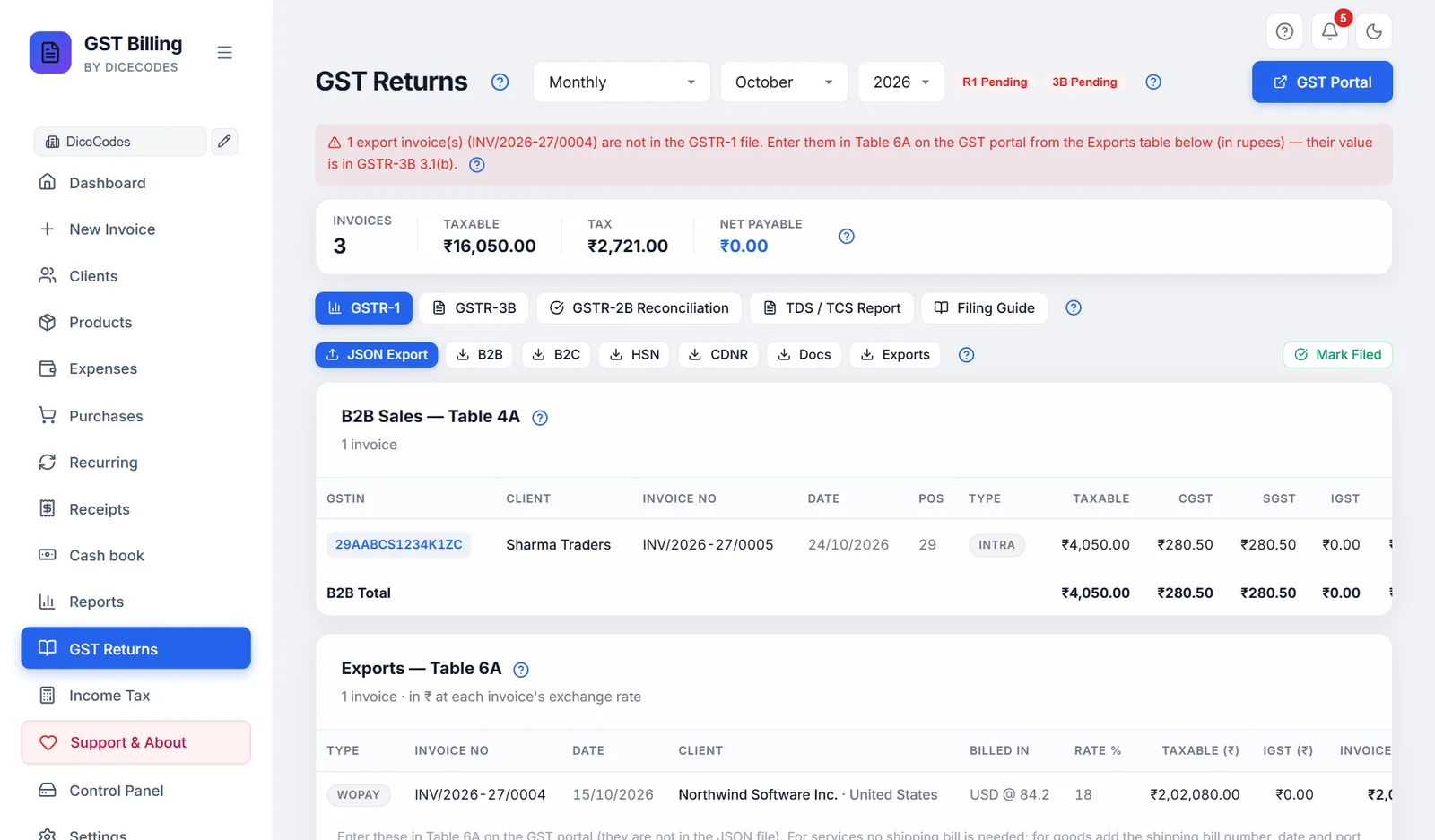
#B2B Sales — Table 4A
Every tax invoice to a client with a GSTIN, one row each. Your client sees these in their GSTR-2B and claims the GST as credit, so they must be right. The heading shows how many invoices there are.
| Column | Meaning |
|---|---|
| GSTIN | The client's GSTIN, from the invoice |
| Client, Invoice No, Date | As on the invoice |
| POS | Place of supply as a state code (27, 10, 07…) |
| Type | Intra (CGST + SGST) or Inter (IGST), exactly as the invoice charged it |
| Taxable, CGST, SGST, IGST | Taxable value and tax. UTGST (Union Territories) is shown under SGST, as the portal takes it. |
| Total | The invoice total |
The last row, B2B Total, adds them up. "No B2B invoices for this period." means no invoice in the period had a client GSTIN.
In the JSON, a reverse-charge invoice is marked so, and an invoice to an SEZ client goes in as an SEZ supply (with or without payment of tax, from the invoice's LUT option).
A sale to a business is in B2C instead? The client had no GSTIN on that invoice. Add the GSTIN to the client, open the invoice, pick the client again so the GSTIN is copied in, and save. Wrong Intra/Inter? See wrong tax split.
#Credit/Debit Notes — Table 9B
Shown only when the period has credit notes. One row per note: the client's GSTIN (or Unregistered), client, note number, date, taxable value, tax and total.
- Credit notes reduce your sales and tax. They are subtracted in the Summary Totals, the HSN Summary and GSTR-3B.
- Notes to clients with a GSTIN go in the JSON file (CDNR). Notes to unregistered buyers are not in the JSON: download them with CDNR (the file
GSTR1_CDNUR.csv) and enter them on the portal under 9B (Unregistered), if the portal asks for them. - The app does not make debit notes. If you issue one, add it on the portal by hand.
#B2C Sales — Table 7
Sales to buyers without a GSTIN. The portal does not want them one by one: it wants totals for each supply type, place of supply and tax rate, and that is how the card shows them.
| Column | Meaning |
|---|---|
| Type | Intra-state, Inter-state, or Inter-state, large for a B2C Large invoice |
| Place of supply | State code and name, such as 10-Bihar |
| Rate % | The GST rate. For a large invoice this column shows its invoice number instead. |
| Taxable, CGST, SGST, IGST, Total | Added up for that row |
B2C Large (Table 5). An inter-state invoice to an unregistered buyer above ₹1 lakh (₹2.5 lakh for invoices before 1 August 2024) is listed on its own row, marked Inter-state, large, and goes in the file invoice by invoice. The heading shows how many there are, such as "12 invoices (1 B2C Large)".
The last row, B2C Total, adds up all B2C sales. Credit notes are not taken off here; they are subtracted once, in the Summary Totals.
An inter-state sale shows in the red box? Its place of supply is missing or is your own state. Open the invoice, set Place of Supply to the buyer's state, and save. A walk-in sale in your own state should be Intra-state: if it is not, check your state in Settings.
#HSN Summary — Table 12
One row for each HSN/SAC code, tax rate and unit, covering B2B, B2C, exports and credit notes together. The portal requires this table.
| Column | Meaning |
|---|---|
| HSN | The code on the item. N/A means the item had none. |
| Description | The name of the first item with that code |
| Qty | Total quantity. Credit notes subtract. |
| Taxable, CGST, SGST, IGST, Total Tax | Added up, net of credit notes |
How many digits you need depends on your turnover: 4 digits up to ₹5 crore, 6 digits above. Tick Aggregate turnover (AATO) is above ₹5 crore in Settings, GSTR filing details if that is you, and the app checks for 6.
In the JSON and in the HSN CSV each unit is turned into the portal's unit code (UQC), such as NOS, KGS or MTR. A unit the portal does not know goes in as OTH (others).
An N/A row: some items have no HSN code, and they are left out of the JSON. Add the code on those invoices and on the product. The same code on two rows means two rates or two units were used with it, which is correct.
#Document Summary — Table 13
The portal wants to know which document numbers you used in the period. One row per number series (the number without its last digits, such as INV/26-27/):
| Column | Meaning |
|---|---|
| Document Type | Invoices for outward supply (tax invoices, bills of supply, composition bills), Credit notes or Delivery challans |
| From, To | The lowest and highest number in that series this period |
| Total Issued | How many numbers were used, cancelled ones included |
| Cancelled | How many of those were cancelled. The portal works out net issued as Total minus Cancelled. |
Quotations and proforma estimates are not reported. If you changed the number prefix during the period, you see two rows: that is correct.
#GSTR-1 Summary Totals
The last card adds up the return: a B2B Sales row, a B2C Sales row, and a Grand Total. The Grand Total takes credit notes off, so it can be lower than B2B plus B2C. Exports are not in it (they are in GSTR-3B 3.1(b)).
After you upload the JSON, compare these figures with the summary the portal shows before you file.
#Exports and SEZ
- Exports: an invoice to a client whose country is not India. It is kept out of B2B and B2C and out of the JSON file, because the portal's export table (6A) can need the shipping bill number, date and port code, which the app does not record. The Exports — Table 6A table on the GSTR-1 tab lists them, ready to type into Table 6A on the portal: type WPAY (IGST paid) or WOPAY (under a LUT, no IGST), invoice number and date, rate, taxable value, IGST and invoice value. Exports saves the same rows as
GSTR1_Exports_6A.csv. For services no shipping bill is needed; for goods add it on the portal.

- SEZ units: a client with SEZ ticked is a B2B sale, always inter-state. In the JSON it is an SEZ supply with payment of tax, or without payment if the invoice is under LUT.
- GSTR-3B: both exports and SEZ supplies are zero-rated, so their value (and IGST, if paid) goes in Table 3.1(b), not 3.1(a). See GSTR-3B.
Invoices in dollars, euros and other currencies
Every figure on this screen is in rupees. An invoice billed in another currency is turned into rupees at the exchange rate saved on that invoice (see Billing in another currency): its value, taxable value and tax in every table, the HSN summary and GSTR-3B. The Exports table shows each invoice's currency and rate, for example USD @ 84.1.
An invoice in another currency without a rate cannot be turned into rupees. It is listed in the red box, its row in the Exports table shows no rate, and the GSTR-1 file is not made until you open the invoice and type the rate. Under GST the rate to use is the one for the date of the invoice: the RBI reference rate, or your bank's rate for that day.
The rupee value is worked out from the invoice amounts and rounded to the paisa. If your accountant or the shipping bill uses a different rate, the portal figures follow theirs; ask them which to use.
#GSTR-1 downloads
The buttons at the top of the GSTR-1 tab:
| Button | What it saves |
|---|---|
| JSON Export | The file you upload to the portal: GSTR1_GSTIN_MMYYYY.json. It is checked first: see Checks before the file is made. |
| B2B | GSTR1_B2B_Invoices.csv: one row per B2B invoice, in the portal's Table 4A layout |
| B2C | GSTR1_B2C_Small.csv (totals by type, place of supply and rate), and GSTR1_B2C_Large.csv if there are any large invoices |
| HSN | GSTR1_HSN_Summary.csv, in the column order of the portal's Table 12 template, with the unit code (UQC) |
| CDNR | GSTR1_CDNR.csv for credit notes to registered clients, GSTR1_CDNUR.csv for unregistered |
| Docs | GSTR1_Doc_Summary.csv: the Table 13 rows |
| Mark Filed | Marks GSTR-1 filed for this period. The button goes away once it is marked; use the R1 pill to undo. |
The CSV files are for checking and for your CA. The JSON is what the portal takes. If there is nothing of that kind in the period you see a message such as "No B2B data to export" or "No Credit Notes", and no file is saved.
Files go to your browser's download folder. Download them again after changing an invoice: an old file does not update itself.
#Checks before the file is made
The portal rejects some mistakes outright, so JSON Export checks for them first.
These stop the download until fixed (the message starts "GSTR-1 export blocked — fix these first"):
- An invoice or credit note number longer than 16 characters, or with anything other than letters, digits,
-or/. The message names the first three. - An item with a GST rate the portal does not accept. The portal takes 0, 0.1, 0.25, 1, 1.5, 3, 5, 6, 7.5, 12, 18, 28 and 40%.
- Your own GSTIN is not set in Settings, Company.
- Full year is chosen as the period. A GSTR-1 file is for one month, or one quarter if you file quarterly.
- An invoice to a registered buyer, or an inter-state sale, with no place of supply (no client state and no Place of Supply on the invoice).
These download with a warning (the message starts "GSTR-1 JSON exported. ⚠"):
- Items with no HSN code. They are left out of the HSN table.
- HSN codes shorter than 4 digits, or 6 if you ticked turnover above ₹5 crore in Settings.
- Custom units, which are sent as OTH (others).
What the JSON holds: B2B invoices, B2C totals, B2C Large invoices, credit notes to registered clients, credit notes to buyers without a GSTIN (a large inter-state one in Table 9B; the rest reduce the B2C totals), the HSN summary and the document summary. It is laid out the way the portal takes it today: from the May 2025 return, the HSN summary (Table 12) comes in two lists, B2B (buyers with a GSTIN, SEZ units too) and B2C (buyers without a GSTIN, and exports), each description at most 30 characters, and services with unit NA and quantity 0. Empty tables and blank values are left out, because the portal rejects them.
What you add on the portal by hand: exports (Table 6A), credit notes on exports, debit notes, advances received (Table 11), amendments to earlier periods (Table 9A), and nil-rated, exempt or non-GST sales (Table 8). Items at 0% are sent at a 0% rate in B2B and B2C.
Blocked? Open each invoice the message names, correct the number or the rate, save, and export again. See "GSTR-1 export blocked". "No invoices to export" means the period has no tax invoices or credit notes: check the period.
#Uploading GSTR-1 to the portal
- Fix the red boxClear the problems listed at the top first.
- Download the JSONJSON Export on the GSTR-1 tab, for the right month or quarter.
- Open the returnLog in at gst.gov.in, go to Returns Dashboard, pick the financial year and period, and open GSTR-1.
- Upload itChoose Prepare Offline, upload the JSON, and wait for it to be processed. If the portal reports errors, it gives an error file to download: fix those invoices in the app and upload a fresh JSON.
- Add what the file cannot holdExports in Table 6A, and anything else listed under What you add on the portal by hand.
- Check and fileCompare the portal's summary with the app's Summary Totals, then submit and file with DSC or EVC (OTP).
- Mark it filedBack in the app, click Mark Filed.
#GSTR-3B: tax to pay
GSTR-3B is where you pay. The tab works it out in four steps: tax on sales (3.1 and 3.2), credit on purchases (4), the credit used against the tax (6), and what is left to pay in cash.
| Card | What it shows |
|---|---|
| Table 3.1 — Outward Supplies & Tax | (a) taxable sales, (b) exports with their IGST, (c) nil and exempt |
| Table 3.2 — Inter-state Supplies to Unregistered Persons | Inter-state B2C sales, by state. Shown only if there are any. |
| Table 4 — Eligible ITC | Credit from purchases and expenses, by IGST, CGST and SGST |
| Table 6 — Tax Payment Summary | Tax, credit used, Net Tax Payable, and credit carried forward |
| Net GST Payable | The one figure to pay |
The portal now fills most of GSTR-3B from your GSTR-1. Use the app's figures to check what it shows before you pay and file.
The credit here is everything you entered. Usually only what appears in your GSTR-2B can be claimed. Use the GSTR-2B Reconciliation tab to check.
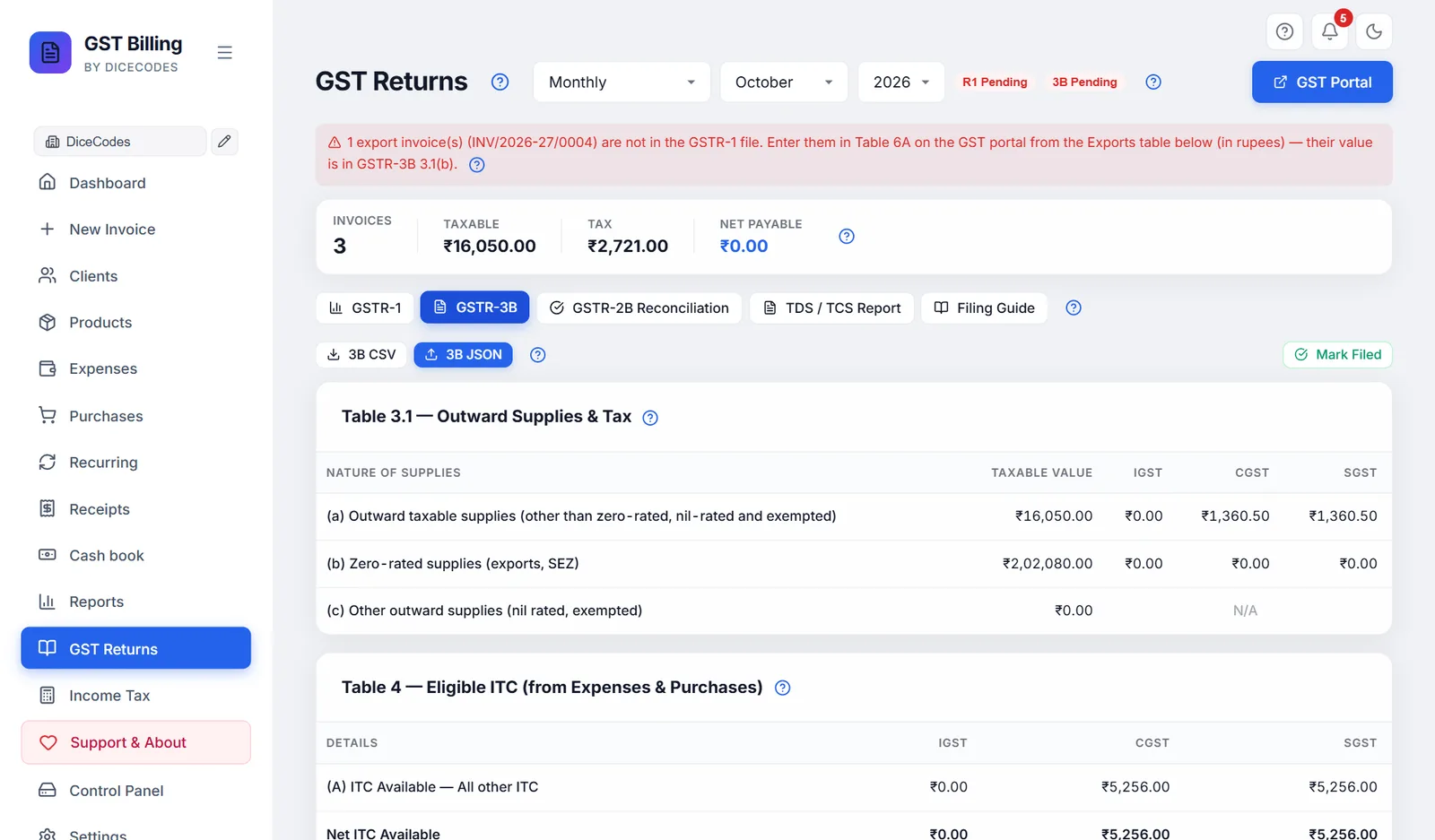
Table 3.1(b) Zero-rated supplies holds exports and supplies to SEZ units or developers, with or without IGST, in rupees. Supplies to an SEZ used to be counted in 3.1(a) with the other B2B sales; CBIC Circular 147/03/2021-GST (paragraph 3) treats that as a mistake that blocks the IGST refund, so they are now in 3.1(b). The IGST on them still counts in the tax you pay. Their credit notes reduce 3.1(b).
#Table 3.1 — Outward Supplies & Tax
| Row | What is in it |
|---|---|
| (a) Outward taxable supplies (other than zero-rated, nil-rated and exempted) | B2B and B2C sales, less credit notes: the same as the GSTR-1 Grand Total. Taxable value, IGST, CGST and SGST. |
| (b) Zero-rated supplies | Exports: their taxable value and any IGST charged on them |
| (c) Other outward supplies (nil rated, exempted) | Always ₹0: the app does not separate exempt sales. If you have them, enter them on the portal. |
Reverse-charge purchases, 3.1(d), are not shown on screen, but the 3B JSON fills them from the period's purchase bills marked reverse charge. Pay that tax in cash on the portal.
#Table 3.2 — Inter-state Supplies to Unregistered Persons
Appears only when you sold to a buyer without a GSTIN in another state. One row per state (the client's state), with the taxable value and IGST. It should agree with the inter-state rows of B2C Sales. On the portal, add a row for each place of supply.
#Table 4 — Eligible ITC (from Expenses & Purchases)
The GST you paid, which you can take off the GST you owe. It adds up:
- Purchase bills dated in the period: their GST goes to IGST if the purchase is marked inter-state, otherwise half to CGST and half to SGST.
- Expenses dated in the period with a GST amount: the same way.
The row (A) ITC Available — All other ITC is the portal's Table 4(A)(5), where ordinary purchase credit goes. Net ITC Available is the same figure, because the app does not reverse any credit. Cess on purchases is sent in the 3B JSON.
The app counts every GST amount you entered. Some is not claimable: food and drinks, personal spending, motor cars in most cases, bills without your GSTIN on them, or invoices the supplier has not reported (not in GSTR-2B). Leave such GST out of the expense, or reduce the figure on the portal. Ask your CA if unsure.
#Table 6 — Tax Payment Summary
| Row | Meaning |
|---|---|
| Output Tax Liability | Tax on your sales: Table 3.1(a), plus IGST on exports |
| Less: ITC utilised | The credit from Table 4 used against it, in the order the law sets |
| Net Tax Payable | What is left, for each tax and in total. This is paid in cash. |
| ITC carried forward | Shown only when credit is left over. It stays in your credit ledger for next month. |
Credit is used in the order the law sets: IGST credit first (against IGST, then CGST and SGST), then CGST credit (against CGST, then IGST) and SGST credit (against SGST, then IGST). CGST credit never pays SGST, nor SGST credit CGST. So credit you hold in CGST and SGST can pay a tax that is all IGST. When IGST credit is spread over CGST and SGST, the app sends it first to the part your own CGST or SGST credit cannot cover, so none of that credit is left stranded while you pay cash.
Example. You owe CGST ₹9,000 and SGST ₹9,000, and no IGST. You have IGST credit ₹5,000 and CGST credit ₹6,000. CGST credit can cover only ₹6,000 of the CGST, so IGST credit pays the other ₹3,000 of CGST and its last ₹2,000 goes to SGST. CGST credit pays its ₹6,000. You pay SGST ₹7,000 in cash, and nothing is carried forward.
If instead you owed only SGST ₹9,000 and had CGST credit ₹6,000, that credit could not be used at all: you would pay ₹9,000 in cash and carry ₹6,000 CGST credit forward.
#Net GST Payable
The big figure at the bottom of the GSTR-3B tab: the total to pay for the period. Underneath it says Pay via Electronic Cash Ledger (create a challan on the portal and pay by net banking, UPI, card or NEFT/RTGS), or ITC covers your liability when nothing is due in cash.
Late payment carries interest at 18% a year on the cash amount, and a late fee for filing late. See the Filing Guide.
#GSTR-3B downloads
| Button | What it saves |
|---|---|
| 3B CSV | GSTR3B_Summary.csv: rows for 3.1(a), 4(A) ITC available, 6.1 ITC utilised, 6.1 tax payable in cash, and ITC carried forward |
| 3B JSON | GSTR3B_GSTIN_MMYYYY.json in the portal's GSTR-3B format: 3.1(a), 3.1(b), reverse charge 3.1(d) and Table 4(A)(5) with cess. Other rows are sent as 0. |
| Mark Filed | Marks GSTR-3B filed for this period; use the 3B pill to undo |
3B JSON says "No data to export for this period" when the period has no invoices and no expenses, even if it has purchase bills. In that case use 3B CSV, or type the credit in on the portal.
#Checking your credit against GSTR-2B
GSTR-2B lists the invoices your suppliers reported. The GSTR-2B Reconciliation tab compares it with the purchase bills you entered, so you claim only credit that is really there. (If the tab is missing, turn on GSTR-2B matching in Settings, Features.)
- Download GSTR-2BOn the portal: Returns, GSTR-2B, pick the month, Download JSON. If it comes as a ZIP, extract it.
- Pick the same period hereChoose the same month at the top of GST Returns.
- Import itClick Import 2B JSON and choose the file. A message says "Imported GSTR-2B for GSTIN — N suppliers".
- Read the resultsEach 2B entry is matched to your purchase bills by the supplier's GSTIN and invoice number. See Reading the results.
- Act on the differencesCorrect your bills, add missing ones, or ask suppliers to file.
Before you import, the tab shows "Import your GSTR-2B JSON to reconcile against your purchase records." If you have no purchase bills at all, it warns that everything will show as "2B only".
The imported file is not kept: import it again after leaving the screen. Only the B2B invoices in GSTR-2B are compared (not its credit notes, imports or ISD entries), and only purchase bills, not expenses.
"That doesn't look like a GSTR-2B JSON": you picked the Excel or PDF, or another return. See the GSTR-2B file message.
#Reading the GSTR-2B results
After an import you see Export reconciliation CSV, Clear (removes the imported file), and "Imported for GSTIN · period MMYYYY". Check that period matches the one you picked.
The row of counts below works as a filter: click one to show only those rows, or Total entries to show all.
| Status | Meaning | What to do |
|---|---|---|
| ✓ Matched | In both, and the invoice value and taxable value agree to within ₹1 | Nothing. This credit is safe to claim. |
| ⚠ Amount mismatch | In both, but the amounts differ by more than ₹1 | Compare with the paper bill. Correct your purchase entry, or ask the supplier to amend their GSTR-1. |
| ⚠ Books only | A purchase bill of this period that is not in GSTR-2B | The supplier may not have filed, or filed with a different number or GSTIN. Ask them. Usually you cannot claim it until it appears. |
| ⚠ 2B only | In GSTR-2B but not in your purchase bills | Enter the bill in Purchases if it is yours. If you never bought it, tell the supplier. |
The table shows Status, Supplier (name and GSTIN), Invoice No., Date, 2B Value, Books Value, Diff (2B minus books, in red when more than ₹1) and ITC: ✓ when GSTR-2B says the credit is available, ✗ when it is not (Books only rows always show ✗).
How matching works: invoice numbers are compared ignoring capitals, spaces, slashes and dashes, so INV/12 matches inv-12. Your book value includes cess and any round-off on the bill. A bill entered in an earlier month still matches; only this period's bills can show as Books only.
#TDS and TCS report
The TDS / TCS Report tab adds up the period's tax invoices and credit notes that have TDS or TCS on them. These are income-tax amounts, not GST. It has two cards.
The CSV files list every invoice with quarter, section, rate, client, GSTIN, PAN, taxable value and amount. They are for your CA to prepare Form 26Q and Form 27EQ from (filed through tin-nsdl.com); they are not the forms themselves.
A card says "No invoices with TDS in this period": no invoice in the period has TDS turned on. Turn it on in the invoice under Customize, then TDS, and save. Check the period too: for a quarterly figure pick Quarterly.
#TDS Receivable (deducted by clients)
Tax your clients should have deducted from what they pay you, under sections such as 194C, 194J or 194Q. You claim it against your own income tax, so check it shows in your Form 26AS / AIS.
- Three figures: Invoices with TDS, Taxable value, Total TDS receivable.
- A table by Quarter (Q1 is April–June) and Section, with the number of invoices, taxable value and TDS. An invoice with no section chosen is counted under 194Q.
- Export TDS CSV saves
TDS_Receivable_Report.csv. It is greyed out when there is nothing to export.
#TCS Collected (from clients)
Tax you collected from buyers on top of the invoice. You must deposit it with the Income Tax Department and report it in Form 27EQ every quarter.
- Three figures: Invoices with TCS, Taxable value, Total TCS collected.
- A table by quarter and section. An invoice with no section chosen is counted under 206C(1H).
- Export TCS CSV saves
TCS_Collected_Report.csv.
#The Filing Guide tab
Step-by-step portal instructions inside the app. At the top a one-line reminder: review the GSTR-1 and 3B tabs, export the JSON, upload it, file GSTR-1 first and GSTR-3B after, with the usual due dates (GSTR-1 by the 11th, GSTR-3B by the 20th of the next month) and the late fee.
Three buttons switch what is shown:
| Button | What it shows |
|---|---|
| Regular Filing (With Sales) | GSTR-1 in 9 steps, GSTR-1 Pro Tips, GSTR-3B in 7 steps, GSTR-3B Pro Tips |
| NIL Return (No Sales) | When a NIL return applies, and how to file NIL GSTR-1 and NIL GSTR-3B. See NIL returns. |
| Common Errors & Fixes | Portal error messages and what to do, and key GST rules |
Click a step to open its details. Tick the circle at the left of a step as you finish it: it turns green and is struck through. The ticks are not saved.
Due dates, fees and rules in the guide are as the app knows them; the government changes them from time to time, so confirm on gst.gov.in or with your CA.
#GSTR-1 steps in the Filing Guide
The card GSTR-1 — Sales Return (File This First) walks through the portal:
- Log in to the GST portal.
- Select the return period, and choose Prepare Online or Prepare Offline.
- Table 4A, B2B invoices: what each portal field means.
- Table 5, B2C Large.
- Table 7, B2C (Others), entered as totals.
- Table 9B, credit and debit notes.
- Table 12, HSN summary, and how many digits your turnover needs.
- Table 13, documents issued.
- Preview, submit and file with DSC or EVC, and keep the ARN.
If you upload the app's JSON, steps 3 to 8 are already filled in: just check them.
#GSTR-3B steps in the Filing Guide
The card GSTR-3B — Summary Return + Tax Payment (File After GSTR-1): open GSTR-3B, check Table 3.1 and 3.2, claim credit in Table 4, Table 5 (exempt and non-GST purchases), Table 6 (paying the tax, and the order credit is used), then submit, pay and file. The last step lists what happens if you file late: a late fee per day, 18% a year interest on tax paid late, the next return blocked, and e-way bills blocked after two months.
#GSTR-1 and GSTR-3B Pro Tips
Two green and blue boxes in Regular Filing with practical tips: the quickest way to upload GSTR-1 (the JSON), opting for quarterly filing (QRMP) under ₹5 crore, where amendments, exports and advances go, why to check GSTR-2B before claiming credit, the order credit is used, how to pay through a challan, how interest is worked out, and where reverse-charge tax goes.
#Common GST Portal Errors & How to Fix Them
The card under Common Errors & Fixes lists the portal messages people meet most, each with the fix: Invalid GSTIN, invoice number already exists, place of supply mismatch, invoice date outside the return period, invalid HSN code, GSTR-3B blocked because GSTR-1 is not filed, credit more than GSTR-2B, previous period not filed, taxable value and tax mismatch, EVC or OTP problems, and challan amount not matching.
For messages from the app itself, see Troubleshooting, GST and returns.
#Key GST Rules to Remember
A short list of the rules behind the returns: the time limit to claim credit (Section 16(4)), the time limit for credit notes (Section 34), when an invoice must be issued (Section 31), the order credit is used (Section 49), credit only as in GSTR-2B, interest on late payment (Section 50), how long notices can come (Sections 73 and 74, keep records at least 6 years), cancellation of GSTIN for not filing (Section 29(2)(c)), and e-way bills blocked for unfiled GSTR-3B.
#NIL returns
If a period has no invoices, no purchase bills and no expenses, an amber banner says: "No invoices, purchase bills or expenses found — file a NIL return on the GST portal. NIL returns are mandatory."
A NIL return is only right when you had no sales, no credit to claim, no tax due and no reverse-charge purchases. A period with a purchase bill has credit to claim, so the banner does not appear: file a regular GSTR-3B for it. (A NIL GSTR-1 may still be right if you sold nothing.)
- Open the NIL guideOn the Filing Guide tab, click NIL Return (No Sales). The box When to File NIL Return lists the conditions.
- File NIL GSTR-1 firstFollow NIL GSTR-1 — File First (Even with Zero Sales): open GSTR-1, check every table is empty, and file.
- Then NIL GSTR-3BFollow NIL GSTR-3B — File After NIL GSTR-1: check all values are zero, submit and file.
- Or by SMSNIL returns can also be filed by SMS to 14409 from the authorised signatory's registered mobile. Send
NIL R1 <GSTIN> <MMYYYY>for GSTR-1,NIL 3B <GSTIN> <MMYYYY>for GSTR-3B, orNIL C8 <GSTIN> <MMYYYY>for CMP-08, for exampleNIL 3B 29ABCDE1234F1ZW 092026. A quarterly return uses the quarter's last month. You get a code back: replyCNF 3B <code>(or CNF R1, CNF C8) within 30 minutes. The NIL Return Quick Summary box shows the same formats. Source: the GST portal's SMS filing FAQs. - Mark both filedClick the R1 and 3B pills at the top.
File on time even with nothing to report: late fees still apply, and not filing for six months can get your GSTIN cancelled.
#E-invoicing (IRN)
A business whose yearly turnover (aggregate, all GSTINs on one PAN) has been above ₹5 crore in any year since 2017-18 must register its B2B invoices on the e-invoice portal. The portal gives each invoice an IRN (Invoice Reference Number) and a signed QR code, and an invoice without them is not valid. Below ₹5 crore you do not need any of this.
The app stays offline: it makes the file, you upload it, and you bring the IRN back. Turn on E-invoicing (IRN) in Settings, Features first; it is off to start.
- Download the e-invoice JSONFor one invoice: open it, click E-invoice in the toolbar, then Download e-invoice JSON. For several: tick them on the Dashboard and click E-invoice JSON in the bar that appears. Save the invoice first, so its number is final.
- Upload it on the portalLog in at einvoice1.gst.gov.in, go to e-Invoice, Bulk Upload, choose the file and upload it. The portal returns the IRN, Ack No, Ack Date and Signed QR Code for each invoice; download that result as JSON.
- Bring the IRN backOn the Dashboard, click Import IRN and choose that JSON file. Each IRN is saved on the invoice with the same number, date and GSTIN. Or open one invoice, click E-invoice, paste the four values and click Save IRN.
From then on every design, A4 to thermal, prints IRN, Ack No, Ack Date and the QR code at the top of the invoice. The Dashboard marks such invoices IRN. Importing the IRN changes nothing else on the invoice.
What goes in the file: tax invoices and credit notes to clients with a GSTIN, SEZ units and clients abroad (exports), in rupees. A credit note names its original invoice when that number is in the app. The amounts are the ones printed on the invoice, to the paisa. TCS goes in as other charges; a discount on the whole bill goes in as the invoice discount.
What is checked first. Invoices with a problem are left out of the file and listed with what to fix:
- a client with no GSTIN (a sale to a consumer needs no e-invoice), or a GSTIN that looks mistyped;
- a missing PIN code, city, address or state, yours or the client's (yours are in Settings, Company Details);
- an item with no HSN/SAC code, or one that is not 4, 6 or 8 digits; an item name shorter than 3 letters; a GST rate the portal does not accept;
- an invoice number longer than 16 characters, with anything other than letters, digits,
/and-, or starting with 0,/or-; - a date in the future, a cancelled invoice, an invoice in another currency, an invoice that charges no GST, or one that already has an IRN.
The portal does not take changes to a registered invoice. Cancel it on the portal within 24 hours and make a new one, or issue a credit note. The app warns you when you open an invoice that has an IRN.
Businesses with turnover of ₹10 crore or more must report an invoice within 30 days of its date, or the portal refuses it.
#The E-invoice (IRN) window
Opens from E-invoice in the invoice toolbar (only while E-invoicing is on, and for tax invoices and credit notes). At the top it repeats the three steps: download, upload on einvoice1.gst.gov.in (e-Invoice → Bulk Upload), paste the reply.
Below that, one notice tells you where you stand:
| Notice | Meaning |
|---|---|
| "Save the invoice first, so its number is final." | The invoice is new or unsaved. Save it, then open this window again. The download and Save IRN stay greyed out until then. |
| "Fix these first:" and a list | Problems the portal would reject, such as a missing PIN code or HSN code. Fix each one on the invoice or in Settings, save, and reopen. Download e-invoice JSON is greyed out until the list is empty. |
| "This invoice has its IRN…" | The IRN is saved and prints on the invoice. |
| Field or button | What to know |
|---|---|
| Download e-invoice JSON | Saves EINV-invoice number.json (slashes become dashes) for upload on the portal |
| IRN | 64 letters and digits (0-9, a-f), from the portal's reply |
| Ack No | The acknowledgement number, 10 to 20 digits |
| Ack Date | As the portal shows it |
| Signed QR Code | The long text that starts with eyJ. Copy all of it: it has three parts separated by dots, and it must be for the same IRN. |
| Save IRN | Checks the four values and saves them on the invoice. "IRN saved. It now prints on the invoice." confirms it. A mistake is listed in red under the fields. |
| Remove IRN | Only when an IRN is saved. Takes it off the invoice (for example, after you cancelled the e-invoice on the portal). |
| Close | Closes without saving |
"The Signed QR Code is not complete": part of it was missed when copying. Copy it again from the first character to the last. "The Signed QR Code is for a different IRN": the IRN and QR code came from two different invoices.
#E-invoice results: invoices left out, IRNs not saved
After E-invoice JSON or Import IRN on the Dashboard, a window lists any invoice that was not handled, each with the reason. Its title tells you what happened:
| Title | Meaning |
|---|---|
| "N invoices were left out" | The file was made, but without these. Fix each one, then export them again. |
| "Nothing was exported" | None of the ticked invoices could go in the file. The reasons are listed. |
| "IRN saved on N invoices; M not saved" | Some IRNs from the portal's file were saved, the rest were not |
| "No IRN was saved" | None of the IRNs in the file matched an invoice |
Usual reasons an IRN is not saved:
- "No invoice … for this business was found": the number or date differs, or a different business is selected in the sidebar.
- "More than one invoice … was found": paste the IRN into the right invoice by hand.
- "The file does not say which invoice this IRN is for": paste it by hand.
- "Already saved on this invoice", or "This invoice already has a different IRN. It was not changed."
Click OK to close. If the whole file is refused with "No IRN was found in that file", you chose the wrong file: pick the JSON the e-invoice portal gave back after upload.