
Dashboard
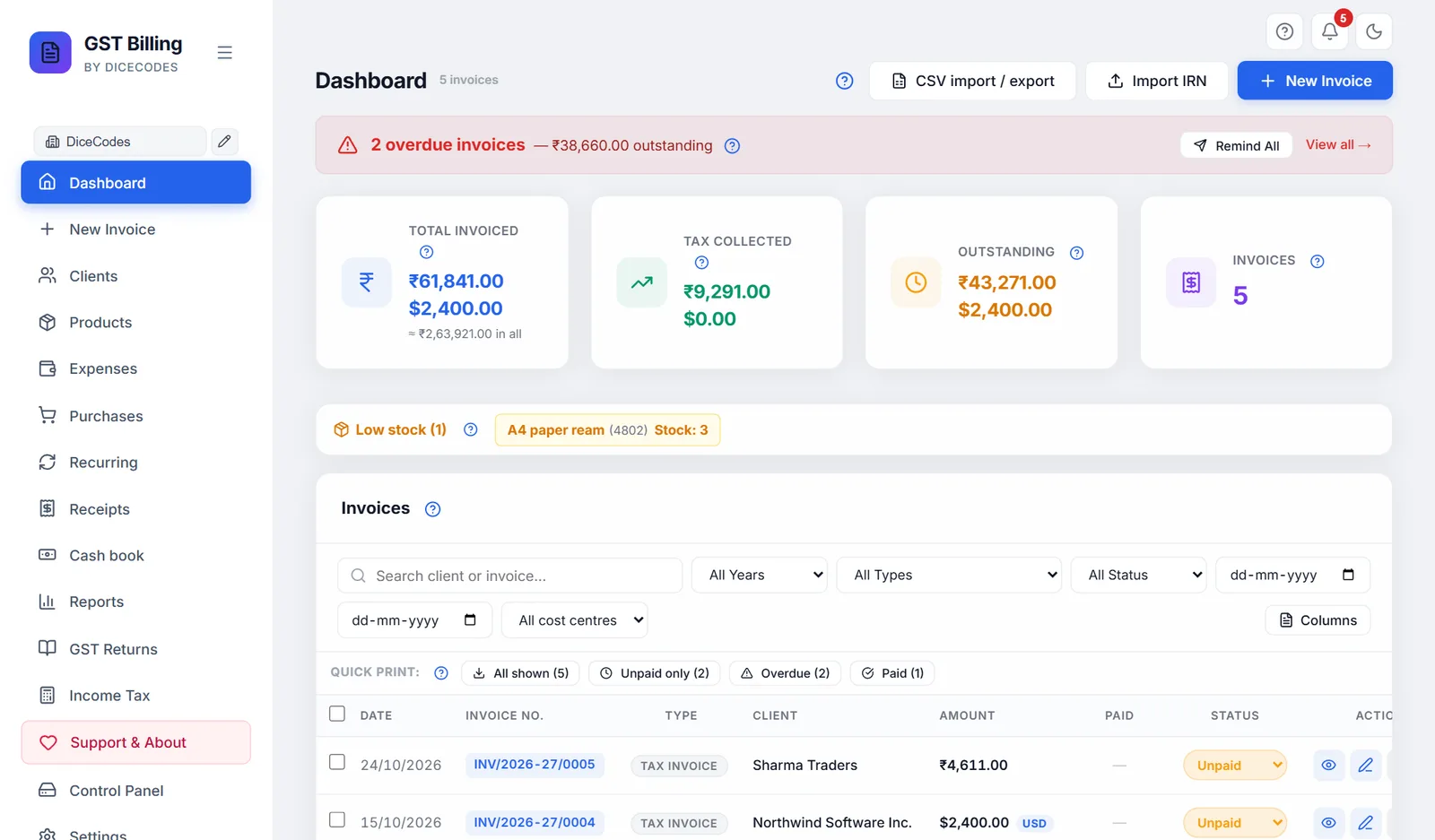
Your invoices at a glance: what you have sold, what you are owed, what is overdue, and every action you can take on an invoice.
#At the top
The Dashboard is the first screen you see. It lists every invoice of the business selected in the sidebar, with the totals above and the actions on each row. If you run more than one business, switch business in the sidebar and the Dashboard shows only that business's invoices straight away. An old invoice that cannot be matched to any business is shown under every business, so nothing is ever hidden.
The count beside the title (for example 42 invoices) is every document of that business: tax invoices, quotations, proformas, challans, credit notes and cancelled invoices too. The buttons on the right:
| Button | What it does |
|---|---|
| ? | Opens this page in your browser. The small ? next to each card's title on the Dashboard opens the part of this page about that card. |
| Lock | Locks the app straight away. It shows only when a PIN is set. |
| CSV import / export | Brings in many invoices from a spreadsheet, or saves all of them to one. See Importing and exporting invoices as CSV. |
| Import IRN | Only when E-invoicing (IRN) is on in Settings, Features. Reads the file the e-invoice portal gives back and saves each IRN on its invoice. See E-invoicing from the Dashboard. |
| New Invoice | Starts a blank invoice. See Making an invoice. |
From top to bottom the screen then shows: the welcome note and the Getting started list (new users only), the support card, the red overdue banner (only when something is overdue), the four totals, the low-stock strip (only when a product is running low), and the invoice list with its filters.
#The welcome note
A new install shows a large note at the top: Welcome to Reazix Billing. It says the app is yours for life with one payment, your data stays on your own computer and works offline, your purchase includes 3 years of updates, and help is one email away.
| Button | What it does |
|---|---|
| Help & Support | Opens Help & Support, with our email address. |
| Start billing or ✕ | Closes the note for good on this computer and browser. |
It shows only while the business has fewer than 10 documents.
#The Getting started list
A new install also shows four things to do before the app is really useful. Each one ticks itself off when it is really done (the app checks what is saved, not whether you opened a screen), and has a button that takes you there. The top right shows how many are done, such as 2 of 4 done.
| Step | Done when | Button |
|---|---|---|
| Add your business details | A business name is saved | Open Settings |
| Make your first invoice | Any invoice exists | Start |
| Add your products or services | At least one product is saved | Open (opens Products) |
| Add bank details or UPI | A bank account or UPI ID is saved | Open Settings |
- Business detailsIn Settings, Company details, fill in your business name, address, state and GSTIN (your 15-character GST number). They print on every invoice.
- ProductsAdd what you sell once, with its HSN code (goods) or SAC code (services) and GST rate. Then you pick it from a list instead of typing it on every invoice. See Adding a product.
- Bank and UPIAdd your bank account or UPI ID in Settings, Bank accounts and UPI. Invoices then show where to pay, with a UPI QR code the client can scan.
- First invoicePick the client, add the items, and the GST is worked out for you. See Your first invoice.
The list disappears by itself once all four are done. ✕ at the top right hides it for good on this computer even if steps are left. Read the 5-minute guide at the bottom opens this documentation in your browser.
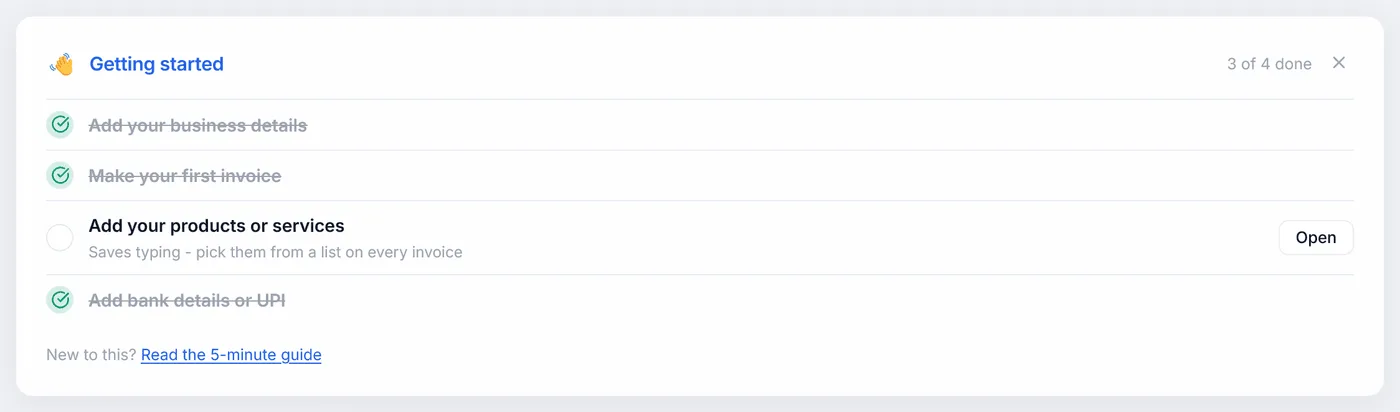
A step stays unticked after you did it? Make sure you clicked Save in Settings (see Saving your changes), then come back to the Dashboard: the list is checked again each time the Dashboard opens. The bank step needs an account number or a UPI ID, not only a bank name.
#Overdue invoices and reminders
An invoice is overdue when its due date has passed and it is not fully paid. Each time the Dashboard opens, every Unpaid or Partial tax invoice, bill of supply or composition bill whose Due Date is before today is marked Overdue for you. Quotations, proformas, challans and credit notes are never overdue, and neither is a cancelled invoice or one with no due date.
When at least one invoice is overdue, a red banner shows above the totals, for example 3 overdue invoices — ₹41,300 outstanding. The amount is what is still owed on them (less any TDS the client deducts); foreign-currency invoices are added after a +, never mixed with rupees.
- Click anywhere on the banner (or View all →) to set the Status filter to Overdue, so the list shows only those invoices. Set the filter back to All Status, or click ✕, to see everything again.
- Remind All opens the Send Payment Reminders window.
Each overdue row in the list has a light red background, and under its status it says how many days late it is, such as 12d overdue.
An invoice shows Overdue but the client has paid: record the payment with the ₹ button (see Recording a payment); it becomes Paid. An invoice is never overdue? Give it a Due Date on the invoice screen (see Invoice Details).
#Send Payment Reminders
Remind All on the red banner opens this window. It lists every overdue invoice on its own line: the client, the invoice number, the balance still owed in red (or Overpaid ₹… in blue if the client paid too much), and the client's phone number when one is saved.
- Pick a clientClick Remind on their line.
- WhatsApp opensIn a new tab, with the client's chat and a polite message already written, such as "Hi Sharma Traders, this is a gentle reminder that Invoice INV/0012 for ₹11,800 was due on 5/9/2026. Kindly arrange the payment at your earliest convenience. Thank you! - Your Business".
- Send itCheck the message and press send in WhatsApp. Come back to the app tab and click Remind for the next client.
The message suits the situation: if part is paid, it asks for the balance and mentions the invoice total; if the due date has passed, it gives the due date. An invoice with nothing left to pay is not sent a reminder (you see "This invoice has no outstanding balance — no reminder to send"). Close closes the window.
The phone number comes from the invoice, or else from the saved client with the same name in Clients. If there is none, WhatsApp opens without a contact and you choose the chat yourself.
WhatsApp says the phone number is invalid? Save the client's phone with the country code, such as +91 98765 43210 or 919876543210. Nothing opens? Your browser blocked the new tab: allow pop-ups for the app (see Print does nothing, step 1). On a computer, WhatsApp Web or WhatsApp Desktop must be logged in.
#The four totals
The four cards under the banner add up your sales. They cover only the business selected in the sidebar, and only real sales:
- Tax invoices, bills of supply and composition bills count.
- Credit notes are subtracted (money given back to clients).
- Quotations, proforma estimates and delivery challans are left out: they are not sales yet.
- Cancelled invoices are left out.
The totals are for all years together and do not follow the filters on the invoice list. For one month, quarter or year, use Reports or GST Returns. Sales in a foreign currency get a line of their own on each card (for example ₹4,25,000 and $1,200), never added to rupees. A card shows — when there are no sales yet.
#Total Invoiced
The grand total of your sales, including GST: the final amount printed on each invoice, added up, less credit notes. It is what you have billed, not what you have received.
When you bill in more than one currency, each currency has its own line, and a small line under them gives ≈ ₹ in all: every invoice in rupees at its own exchange rate. Invoices without a rate are left out of that line and counted beside it.
#Tax Collected
The GST on those sales: CGST + SGST (or UTGST) on sales within your state, IGST on sales to other states, and cess, less the GST on credit notes. This is tax you collected for the government, not your income. Bills of supply and composition bills carry no GST, so they add nothing here. For what you actually have to pay after input tax credit (ITC, the GST you paid on purchases), see GSTR-3B.
#Outstanding
What clients still owe you: for every sale not marked Paid, the invoice total less any TDS the client deducts (see TDS and TCS), less what has been received. An overpaid invoice counts as zero here, not as a minus. Credit notes are not taken off this card. To see who owes what and for how long, use Reports, Outstanding & Aging or a client's account.
#Invoices
How many sales documents the totals are made of: tax invoices, bills of supply, composition bills and credit notes, not cancelled. It is usually smaller than the count beside the Dashboard title, which also counts quotations, challans and cancelled invoices.
A total looks too high or too low? Check the business selected in the sidebar first. Then look for a quotation or challan that should have been converted to a tax invoice (they do not count until converted), or a wrong invoice that should be cancelled (see Cancelling an invoice).
#Low stock
If low-stock alerts are on in Settings (they are on to start, with a limit of 5), every product whose stock is at or below your limit is listed in one line under Low stock (n), where n is how many there are. Each shows the product name, its HSN code if it has one, and either Out of Stock in red (0 or less) or Stock: 3 in amber.
When the list is wider than the screen, it scrolls past slowly like a news ticker; point at it with the mouse to stop it. A short list stays still. If your computer is set to reduce motion, it does not move and you scroll it sideways instead. Click any product to open Products and restock it.
The strip disappears when no product is low, or when alerts are turned off. The limit is one number for all products; change it in Settings. How stock goes up and down is explained in How stock is counted.
A product shows Out of Stock but you have plenty? Its stock in Products was never set, or sales took it below zero. Open Products and correct the stock. Old invoices imported without "Take sold quantities out of product stock" do not touch stock.
#Finding an invoice
The Invoices card lists every document of the business, newest first. Above the list are the filters. They work together: for example "Overdue" and "FY 2026-27" shows only this year's overdue invoices.
| Filter | What it does |
|---|---|
| Search client or invoice... | Type part of a client's name or of an invoice number, such as sharma or 0012. Capital letters do not matter. |
| All Years | Pick one financial year (1 April to 31 March). |
| All Types | Pick one document type: Tax Invoice, Quotation, Proforma / Estimate, Bill of Supply (No GST), Composition (Bill of Supply), Credit Note or Delivery Challan. |
| All Status | Unpaid, Partial, Paid, Overdue or Cancelled. See Status. |
| From / To | A range of invoice dates. Fill in one or both. |
| All cost centres | Only when cost centres are on: one branch, site or project, or No cost centre to find invoices not yet tagged. |
| ✕ | Shows once any filter is set. Clears all of them at once. |
| Columns | Choose which columns the list shows. See Choosing the columns. |
What you see on a row:
- A green IRN beside the invoice number: the invoice is registered on the e-invoice portal. Point at it to see the IRN.
- A yellow note icon beside the client: the invoice has a private note (never printed). Point at it to read it.
- A small currency code such as USD beside the amount: an invoice in a foreign currency.
- Paid: how much has been received so far, or — when nothing has.
- A light red row: overdue. A light blue row: ticked.
"No invoices yet." with a Create Invoice button means the business has none. "No invoices match your filters." means the filters hide them all: click ✕.
An invoice you made is missing? Check the business selected in the sidebar, then clear the filters with ✕. Changing a filter also clears any ticks, so you never act on rows you cannot see.
#Choosing the columns
Columns at the right end of the filters opens Pick columns to show. Tick or untick:
| Column | Shows | To start |
|---|---|---|
| Date | The invoice date | Shown |
| Invoice # | The invoice number, with IRN when it has one | Shown |
| Type | Tax Invoice, Quotation and so on | Shown |
| Client | The client's name and the private-note icon | Shown |
| Amount | The invoice total | Shown |
| Currency | INR, USD and so on, in its own column | Hidden |
| Status | The status dropdown (see Status) | Shown |
| Due date | The due date, or — | Hidden |
| Print count | How many times it was printed or downloaded, such as 2× | Hidden |
| Actions | The buttons for each invoice (see What you can do with an invoice) | Shown |
The Paid column and the tick boxes are always shown. Your choice is remembered on this computer and browser. Click Columns again to close the list. On a narrow screen, hiding a few columns saves sideways scrolling.
#Status
Each sale is Unpaid, Partial (part paid), Paid, Overdue or Cancelled, shown in a coloured dropdown on its row. Recording payments sets it for you: nothing received is Unpaid, some is Partial, the full balance is Paid. Each time the Dashboard opens, unpaid and part-paid invoices past their due date become Overdue, and the row shows how many days late they are.
You can also change it yourself from the dropdown:
| Choose | What happens |
|---|---|
| Paid | Records a payment for the rest of the balance (mode Other, note "Marked paid", today's date), so your payment history, Receipts and reports stay complete. |
| Unpaid | Takes back the payment that marking it Paid recorded, so the Paid column clears and Send reminder comes back. Payments you recorded yourself stay: the invoice then shows Partial or Paid, with a message saying so. Delete a wrong payment under Payment History. |
| Partial, Overdue | Only the label changes. |
| Cancelled | Cancels it at once, without asking, and puts its stock back. See Cancelling an invoice. |
Only sales get paid, so only Tax Invoices, Bills of Supply and Composition bills have this dropdown. Quotations, proformas and delivery challans show Open, or Converted once turned into an invoice; credit notes show Issued. A cancelled one shows Cancelled; Undo cancel is with its actions.
#Recording a payment
When a client pays you, by UPI, bank transfer, cash or cheque, record it against the invoice. The status then changes for you, a receipt is made, and the payment appears in Receipts, the client's account and Outstanding.
- Open itClick the green ₹ button on the invoice's row. The Record Payment window opens. Its top line shows the invoice number, the Total, what is Paid so far, and the Balance (in red while something is owed, green when nothing is).
- Amount ReceivedType the amount received. The box shows the balance as a hint; for a full payment, type that amount.
- Payment DateToday to start. Change it if the money came on another day.
- Payment ModeBank Transfer (to start), UPI, Cash, Cheque, Card or Other.
- Note (optional)The UTR or UPI transaction ID, the cheque number, or anything that helps you match it later.
- Record itClick Record Payment. You see "Payment of ₹… recorded", the status becomes Partial or Paid, and the payment receipt opens, ready to print.
Cancel, or a click outside the window, closes it without saving.
TDS. If the invoice already shows TDS (see TDS and TCS), the balance here is already less that TDS, and paying that balance makes the invoice Paid. If the client deducted TDS the invoice does not show, record it here: see TDS when recording a payment.
Overpayment. If the amount is more than the balance, you are asked Record as overpayment?. Yes, record overpayment keeps the extra as the client's credit, to use on their next invoice. The window then shows Overpaid in blue instead of a balance.
Cancelled invoice. A cancelled invoice cannot take a payment: you see "This invoice is cancelled. Change its status back before recording a payment." Undo the cancel first. On a cancelled or converted document that already has payments, the ₹ button is called Payment history and opens the same window so you can see, reprint or fix them.
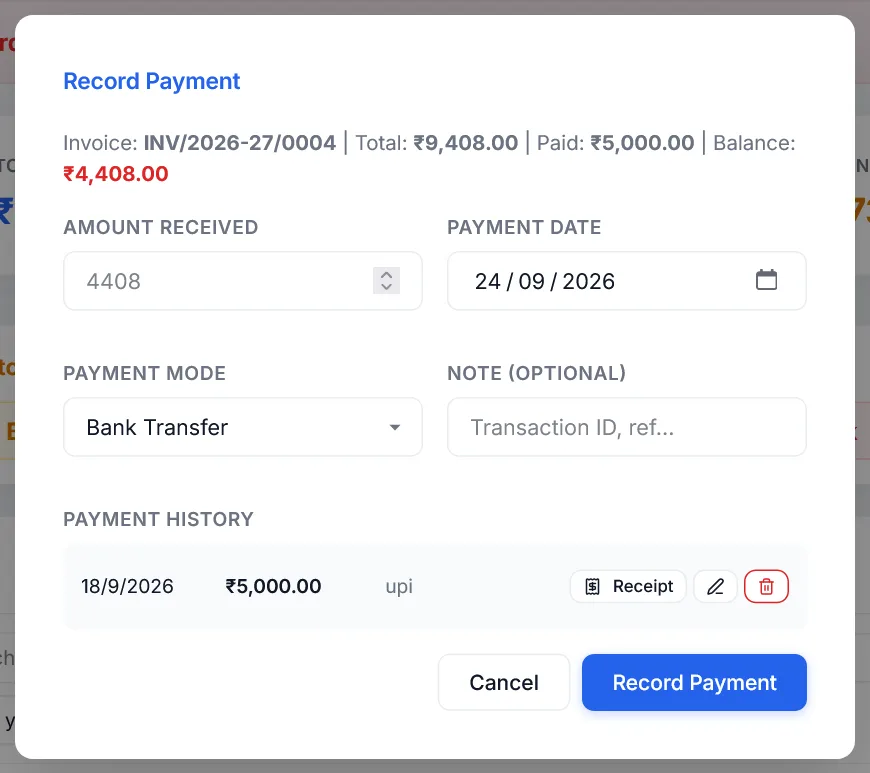
"Enter a positive payment amount": the amount is empty, zero or not a number. A message "Reconciled 1 orphaned payment…" when the Dashboard opens means a receipt saved earlier had lost its link to the invoice; the app put the payment back on the invoice for you, and nothing else is needed. To record one payment that covers several invoices, record it on each invoice for its share.
#Payments from abroad
On an invoice billed in another currency (for example US dollars), the Record Payment window has an extra, optional box, Received from abroad:
| Box | What to type |
|---|---|
| Amount Received | The amount in the invoice's currency, as before (for example 1,000 USD). This is what marks the invoice paid. |
| Credited to your bank (₹) | The rupees that reached your account, from your bank statement. |
| Bank charges (₹) | What the banks took on the way, if anything. |
| FIRC / e-BRC number | The number on the Foreign Inward Remittance Certificate or e-BRC your bank issues. For an export of services it is the proof you were paid in foreign exchange; keep it with the invoice. |
The window shows the rate this works out to. The rupees and the FIRC number are saved with the payment and its receipt, and show in the payment history. They do not change the invoice or its GST figures, which stay at the invoice's own exchange rate.
The Client deducted TDS box is not offered for a client outside India: foreign clients do not deduct Indian TDS.
#TDS when recording a payment
A business client often pays less than the invoice because it kept back income-tax TDS (for example 10% of the value before GST for professional fees under 194J) and deposited it against your PAN. Record that TDS so the invoice shows Paid instead of Partial for ever.
On an Indian tax invoice, bill of supply or composition bill that does not already show TDS, the Record Payment window has a box Client deducted TDS:
- Tick itTick Client deducted TDS. A section list and a rate box appear.
- Section and ratePick the section the client used (it is on their payment advice or TDS certificate). The usual rate fills in; type another if needed. The line below shows the TDS amount and what the client now owes in all.
- Amount ReceivedType what actually reached your bank. Or leave it empty to record only the TDS, if you already recorded the payment.
- Record itClick Record Payment. The TDS is saved on the invoice (as if you had ticked TDS under Customize), so it is owed only its Net Receivable, and it appears in Reports, TDS & TCS for checking against your Form 26AS.
Example. Invoice ₹1,18,000 (₹1,00,000 + 18% GST). The client pays ₹1,08,000 and deducts ₹10,000 TDS under 194J. Tick Client deducted TDS, pick 194J at 10%, type 1,08,000 and record it: the invoice is Paid.
To change or remove the TDS later, open the invoice and change TDS under Customize.
The TDS you record here stays as recorded. Opening the invoice later and saving it again no longer works it out afresh (for 194Q the ₹50 lakh threshold could turn it into zero). If you change the TDS section or rate on the invoice, it is worked out again from the new rate.
#Payment History
Once an invoice has payments, the Record Payment window lists them under Payment History: date, amount, mode and note. Each line has three buttons:
| Button | What it does |
|---|---|
| Receipt | Opens the payment receipt for that payment, to view or print it again. |
| Pencil | Opens Edit Payment to correct the amount, date, mode or note. |
| Bin (red) | Deletes the payment after asking Delete this payment?. Its receipt is removed from Receipts too. |
After any change the paid amount and the status are worked out again: deleting the only payment makes the invoice Unpaid again (or Overdue the next time the Dashboard opens, if the due date has passed).
#Edit Payment
The pencil on a payment opens Edit Payment, showing the invoice number and total. Change the Amount, Date, Mode or Note / reference and click Save changes; Cancel or ✕ closes it without saving. Use it to fix a typing mistake instead of deleting and recording again.
If the new amount takes the total received above the invoice total, you are asked Save as overpayment? first. The receipt in Receipts is updated to match, and keeps its receipt number. A payment made by choosing Paid from the status dropdown becomes an ordinary payment once you edit it, so choosing Unpaid later no longer removes it.
#The payment receipt
A receipt is the paper you give a client to say you have received their money. It opens by itself after Record Payment, and again from Receipt under Payment History. It shows:
- Your business name, address, GSTIN, phone and email, as saved on the invoice.
- PAYMENT RECEIPT, with the Receipt No. (such as RCPT-LZ8K2M4A), Payment Date, Against Invoice, Payment Mode and the Ref / Note if you gave one.
- "Received with thanks from" the client's name, address and phone.
- The Amount Received, and for rupees the amount in words.
- The Invoice Total, Total Paid so far, and the Balance still owed (or Overpaid by how much).
- Lines for the customer's signature and yours, and when it was recorded.
Print Receipt prints only the receipt, on A5 paper (half of A4); in the print window choose your printer, or Save as PDF to send it on WhatsApp or email. Close closes it. Every receipt is also listed on the Receipts screen.
#What you can do with an invoice
The row shows the actions you use most as buttons. The rest are in the ⋯ menu at the end of the row; it closes with Esc or a click elsewhere, and the arrow keys move through it.
| Action | What it does |
|---|---|
| 👁 View | Shows the invoice exactly as it prints, without opening the editor. See The print preview. |
| Edit (pencil) | Opens it on the invoice screen to change it. See Making an invoice. |
| Undo cancel (curved arrow) | Only on a cancelled invoice. See Cancelling an invoice. |
| ₹ Payment | Record a payment. See Recording a payment. |
| Convert to Tax Invoice | Quotations, proformas and delivery challans only, until they have been converted. See Turning a quote into an invoice. |
| ⋯ Duplicate | A new invoice with the same client and items, a new number and today's date. It starts Unpaid, with no payments. Handy for a client you bill the same things every month. |
| Prints the invoice straight away: it opens for a moment, the print window appears, the print count goes up by one, and you are back on the Dashboard. | |
| Sends the invoice to the client. See Sending an invoice by WhatsApp or email. | |
| ⋯ Send reminder | Shown only on tax invoices, bills of supply and composition bills while money is still owed (never on quotations, proformas, challans or credit notes). Opens WhatsApp with a payment reminder suited to the situation, as in Send Payment Reminders. On a part-paid invoice it is called Reminder (partial pending) and asks for the balance. |
| Opens your email program with the invoice details. See Sending an invoice by WhatsApp or email. | |
| ⋯ Cancel invoice | See Cancelling an invoice. |
A cancelled invoice keeps only View, Duplicate and Undo cancel. A quotation, proforma or challan already converted keeps only View and Duplicate, so it cannot be changed or converted twice. Opened, either one is read-only: you can download or print it, not change it. Payments they already have stay viewable from the ₹ button.
"No editable data saved for this invoice" on Edit: the invoice came from a very old version and holds only its totals, so it cannot be opened on the invoice screen. Print does nothing: see Print does nothing, or "Print failed".
#The print preview
The Print preview window shows an invoice exactly as it will print, on the paper size chosen for it, with the same design, logo, QR code and totals. A cancelled invoice shows CANCELLED across it, and an invoice with an IRN shows the IRN and QR code. It opens in three places:
- From the 👁 View button on a Dashboard row, for any invoice, to check it without opening the editor.
- From Full view in the Live preview bar while you make or edit an invoice, on any paper size. See The live preview.
- From Print on the invoice screen when the invoice is on a receipt (thermal) paper size. On A4 and other sheet sizes, Print goes straight to your browser's print window, which has its own preview. See also the thermal print preview.
The line under the title names the paper, such as A4 — click Print to send to your printer.
| Control | What it does |
|---|---|
| Zoom slider, − and + | Make the preview smaller or bigger, from 30% to 250%. − and + step 10% at a time. It opens at 70% for A4 so the whole page fits, and 160% for a narrow receipt so you can read it; on a smaller window or a phone it opens smaller, so the whole width of the page fits. Zoom only changes this preview: the print is always full size on the chosen paper. |
| The percentage (such as 70%) | Click it to go back to the normal size. |
| Download PDF | Only when opened from the invoice screen. Saves and downloads the PDF instead of printing, the same as Save & Download. |
| Cancel, ✕ or Esc | Close it without printing. A click outside the window also closes it. |
| Closes the preview and sends the invoice to print, then your browser's print window opens: choose the printer and click Print there. The button shows "Sending…" while it works. From the Dashboard this works like ⋯ Print: the print count goes up by one. |
The preview looks right but the paper is cut off or tiny: check the paper size in the browser's print window matches your paper, with scale at 100% and margins at Default. Settings for paper, margins and design are in Print and PDF settings. Nothing happens on Print: see Print does nothing. Something missing on the page: see Something is missing on the PDF.
#Cancelling an invoice
Under GST an invoice number, once issued, must stay in your books, so an issued invoice is cancelled, never deleted. Cancel one that was made by mistake, or for a sale that did not happen. (If goods came back after a real sale, issue a credit note instead.)
- Choose Cancel invoiceIn the ⋯ menu on the row, click Cancel invoice. (Choosing Cancelled in the status dropdown does the same at once, without asking.)
- ConfirmThe window Cancel this invoice? explains what happens, and that you can undo it with the Undo cancel arrow among the row's actions. Click Cancel invoice to go ahead, or close it to keep the invoice.
- DoneYou see "Invoice cancelled & stock restored". The row shows Cancelled in grey.
A cancelled invoice keeps its number but no longer counts in totals, reports or GST returns, and any stock it used goes back. If you saved or printed its PDF, the copy in the Saved Invoices folder gets CANCELLED across every page. It is never shown as overdue, and cannot take a payment.
To undo it, click the Undo cancel arrow among the row's actions and answer Yes, undo. It goes back to Unpaid, Partial or Paid, from its payments, the stock is taken out again, and its saved PDF is put back exactly as it was.
"A saved PDF could not be marked CANCELLED": that PDF is open in a PDF reader. Close it and cancel (or undo) again; see Its PDF could not be updated. "Failed to cancel": nothing was changed; try again.
#Importing and exporting invoices as CSV
For moving many invoices in from Excel, Tally or another program, including old invoices from before you started using the app, or out to your CA, in one go. A CSV file is a plain spreadsheet file that Excel and Google Sheets can open and save.
- Open itClick CSV import / export at the top of the Dashboard. The window Sales invoices: CSV import / export opens.
- Start from the templateTemplate downloads
Sales-import-template.csvwith the right columns and one example invoice of two items. Open it in Excel or Google Sheets, replace the example with your invoices, and save it as CSV (Comma delimited). - Fill in your invoicesOne row per item; an invoice of three items is three rows with the same invoice number. Write the client name and invoice date on each invoice's first row. The table below says what goes in each column. Save as CSV again when done.
- Choose the two optionsTake sold quantities out of product stock (off to start): tick it for new sales; leave it off for old invoices whose stock you have already counted. Add new clients to Clients (on to start): clients not yet saved are added to your client list. A client is found by its GSTIN first: a row with a saved client's GSTIN goes to that client under its saved name, even if the name in the file is spelt differently, so no duplicate is made.
- Choose the fileChoose CSV file reads it and shows what will happen before anything is saved: the file name, how many invoices are ready, how many already exist and will be skipped, how many new clients there are, any warning about dates, and every invoice with a problem.
- ImportClick Import (it shows the number ready, such as Import 25). It says "Importing…" while it works, then a message such as "25 invoices imported · 2 already there, skipped". The list refreshes by itself.
Export all as CSV downloads every invoice of this business, oldest first, in the same columns as the template (cancelled invoices are left out), as Sales-invoices-YYYY-MM-DD.csv. You can edit that file and import it into another copy of the app.
How to fill the file. One row per item. Rows with the same invoice number make one invoice; give the client, date and other invoice details on the first row (later rows may leave them blank). Column names are matched loosely, so Qty or Quantity, GSTIN or Client GSTIN, Customer or Client Name all work. Dates can be 2026-10-01, 01-10-2026 or 01/10/2026 (day first, as in India).
| Column | What to put |
|---|---|
| Invoice Number, Invoice Date | Required. |
| Invoice Type | Tax Invoice (if blank), Bill of Supply, Composition, Quotation, Proforma, Delivery Challan or Credit Note. |
| Due Date | Optional. Needed for the invoice to become overdue. |
| Client Name, Client GSTIN, Client State, Client Address, Client Country | The name is required. A client already in Clients (same name) fills in the rest. The state can be a name (Maharashtra), a 2-digit GST state code (27), or left blank to take it from the GSTIN. |
| Place of Supply | Only if it differs from the client's state. It decides CGST + SGST (same state as you) or IGST (another state). |
| Item Name, HSN/SAC, Quantity, Unit, Rate | Item name and rate are required; quantity is 1 if blank. A product of the same name fills in a missing HSN or unit. |
| Discount | Rupees off that line. |
| GST %, Cess % | Such as 18 and 0. |
| Prices Include Tax | Yes if the rates already include GST. |
| Notes | Printed on the invoice. |
| Bill Discount, Round Off | For the whole invoice: rupees off after tax, and Yes to round the total to the rupee. |
GST, CGST + SGST or IGST and the totals are worked out exactly as on the invoice screen. Imported invoices start Unpaid, in rupees. An invoice number that already exists is skipped, never overwritten. Two different invoices with the same number (for example, numbering that restarts each year) are refused: give one of them its own number.
Each problem names the row or invoice and what to fix, for example "Invoice INV/0101: row 3 has no item name." or "date "31/02/2026" is not a date". Invoices with problems are not imported; fix the file and choose it again (the good ones already imported are then skipped as "already there"). "The dates are month first": your Excel wrote US dates; change the date columns to DD-MM-YYYY. A file saved as .xlsx does not work, even if renamed: see A CSV import did not work. For purchase bills, use the same window on the Purchases screen: Importing purchase bills.
#Printing many invoices as one PDF
The Quick print row above the list combines invoices into one PDF file, without ticking anything. It uses the list as it is filtered now, so set the filters first: for example From 1 October To 31 October, then All shown gives October's invoices for your CA.
| Button | Puts in the PDF |
|---|---|
| All shown (n) | Every invoice in the list |
| Unpaid only (n) | Only those marked Unpaid, not part-paid or overdue |
| Overdue (n) | Only overdue ones, for chasing payments |
| Paid (n) | Only fully paid ones |
The number in brackets is how many will go in. Each invoice starts on a new A4 page; a long one takes as many pages as it needs. For more than five invoices, a message shows how far it has got; for more than 100 you are asked first, as it can take a minute. The file reazix-invoices-25-2026-10-31.pdf lands in your Downloads folder, and a message says how many were included.
"No overdue invoices to print": none in the list match; check the filters. "Could not generate any PDFs": see Print does nothing, or "Print failed". To choose exactly which invoices go in, tick them and use One merged PDF or Separate PDFs (ZIP) instead (see below).
#Ticking several invoices
Tick the box at the start of each row, or the box in the header to tick every row in the list as filtered. For a set of dates, such as one month, fill in From and To in the filters first, then tick the header box. A blue bar appears above the list with how many are ticked, such as 3 selected, and these buttons:
| Button | What it does |
|---|---|
| Mark paid, Mark unpaid, Mark overdue | Change them all, after asking. Mark paid records a payment for each balance (note "Marked paid (bulk)"); Mark unpaid takes such payments back, as the status dropdown does. Only tax invoices, bills of supply and composition bills change; ticked quotations or challans are left alone. Marking a cancelled invoice as anything brings it back and takes its stock out again. |
| Export JSON | Saves the ticked invoices to one file, such as reazix-bills-3-2026-10-31.json, which can be brought back with Import in Settings, Backup. |
| One merged PDF | Combines the ticked invoices into one PDF, one invoice per page, useful for your CA or for filing. Works like Quick print. |
| Separate PDFs (ZIP) | One PDF file per ticked invoice, named by its invoice number (such as INV-0012.pdf), downloaded together in one ZIP, such as invoices-26-2026-10-31.zip. Open the ZIP to get the files. |
| E-invoice JSON | Only when e-invoicing is on. One file with the ticked invoices, to upload on the e-invoice portal. See E-invoicing from the Dashboard. |
| Set cost centre… | Only when cost centres are on. Tags the ticked invoices with one branch, site or project, after asking; Remove cost centre takes it off. Only the cost centre changes. |
| Cancel | Shows only while a PDF is being made. Stops after the current invoice and still saves the PDF of those done. |
| Cancel invoices | Cancels the ticked invoices, after asking, and puts their stock back. See Cancelling an invoice. |
| ✕ | Unticks everything. |
Changing any filter or the search clears the ticks, so you never act on invoices you can no longer see. When some fail to save, a message says how many were updated and how many failed; try those again.
#E-invoicing from the Dashboard
E-invoicing is only for businesses whose yearly turnover has crossed ₹5 crore: their B2B invoices must be registered on the government's e-invoice portal, which gives each one an IRN (Invoice Reference Number) and a signed QR code. If that is not you, leave it off. When E-invoicing (IRN) is on in Settings, Features, the Dashboard gets two extra buttons:
- E-invoice JSONTick the invoices to register and click E-invoice JSON in the bar. A JSON file downloads with every invoice that passed the checks. Upload it on einvoice1.gst.gov.in (e-Invoice, Bulk Upload).
- Import IRNDownload the result file from the portal, then click Import IRN at the top of the Dashboard and choose it. Each IRN is saved on the invoice with the same number, date and GSTIN, and you see "IRN saved on 3 invoices. It now prints on them." Nothing else on the invoice changes.
Invoices left out of the file, or IRNs that could not be matched, are listed in a window with what to fix for each (for example a client with no GSTIN, an item with no HSN code, or an invoice that already has an IRN). Fix them and export again. Registered invoices show a green IRN beside their number on the Dashboard. The full rules and checks are in E-invoicing (IRN).
"No IRN was found in that file": you chose the file you uploaded, not the one the portal gave back. Download the portal's result as JSON and import that.