
Products and stock
Save what you sell once, then pick it on every invoice. Stock goes down as you sell and up as you buy.
#The product list
Products in the sidebar opens your catalogue: the goods and services you sell or buy, with their prices, GST rate and stock. Save an item here once, and on every invoice you just type a few letters of its name to fill in the HSN, rate, unit and GST.
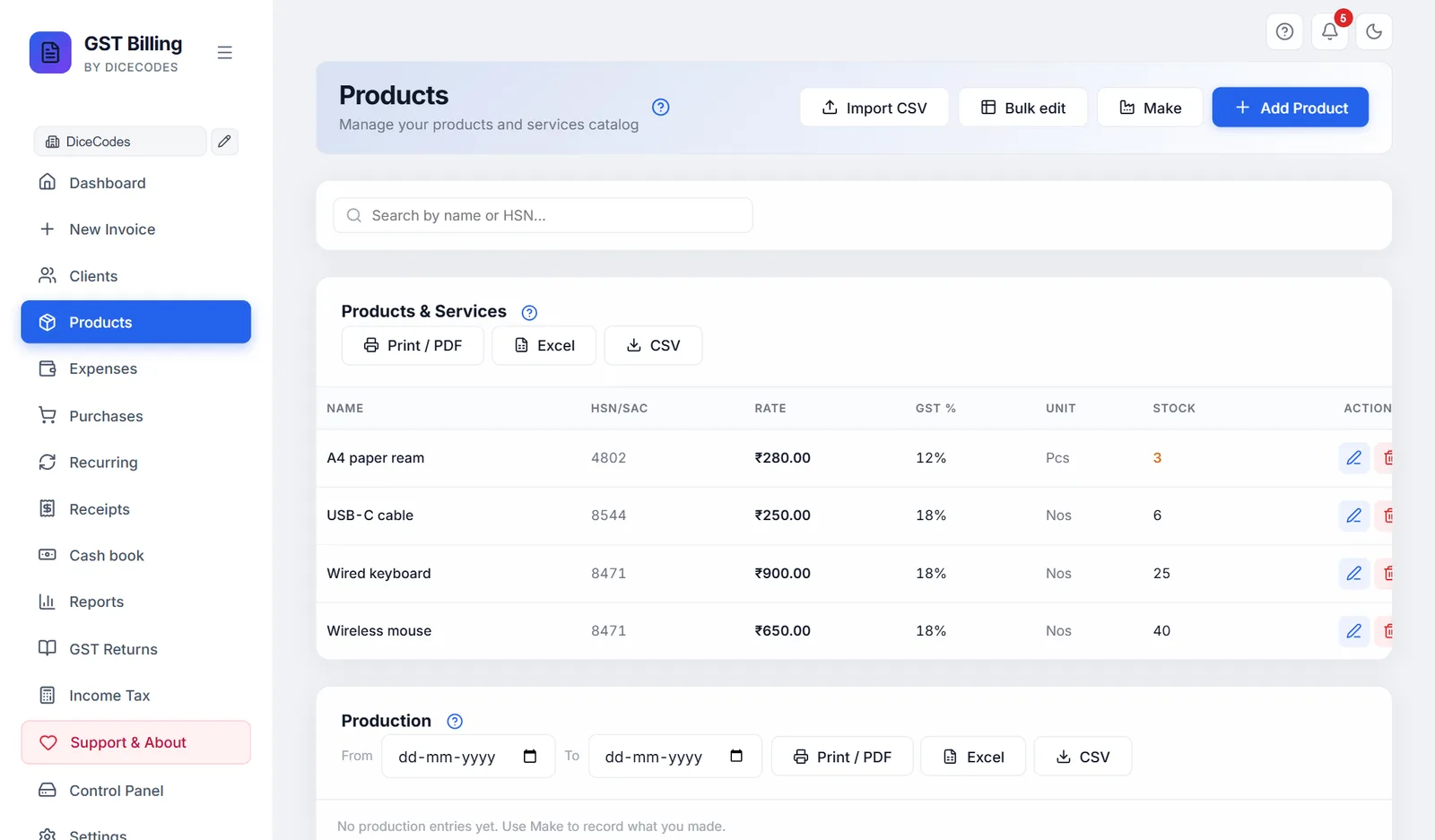
The buttons at the top of the screen:
| Button | What it does |
|---|---|
| Import CSV | Adds many products at once from a spreadsheet. See Importing products. |
| Bulk edit | Turns the list into a grid you can type in, to change many products at once. See Bulk edit. Greyed out until you have a product. |
| Make | Only when manufacturing is turned on: records goods you made from raw materials. See Manufacturing. |
| Add Product | Opens the product form. See Adding a product or service. |
Search by name or HSN... narrows the list as you type. The cross clears it.
The Products & Services table:
| Column | Shows |
|---|---|
| Name | The product name. Point at it to see its description. A product made from raw materials also shows Made here · cost ₹… per unit under its name. |
| HSN/SAC | Its HSN or SAC code, or a dash. |
| Rate | The selling price. |
| GST % | The GST rate. |
| Unit | Pcs, Kg, Hrs and so on. |
| Stock | How many you have. Out of Stock in red at zero or below; the number in amber when it is at or below your low-stock threshold. Service for a service, which has no stock, and a dash (-) for goods whose stock was never entered: neither is ever out of stock. |
| Actions | The pencil (Edit) opens the product form; the bin (Delete) deletes it after asking. |
Products are shared by all your businesses, so each business sees the same list and the same stock.
#Printing or exporting the list
Print / PDF, Excel and CSV beside the table title save the products shown, with name, type (Goods or Service), HSN/SAC, purchase price, selling price, GST %, unit and stock. Search first to save only some. Print / PDF opens the print window, where you can choose a printer or Save as PDF. The buttons are hidden during a bulk edit.
A CSV saved here can be opened in Excel, and is a handy way to send your price list to an accountant. It can also be brought back in with Import CSV, or into another copy of the app.
#Deleting a product
The bin asks Delete this product? first. Deleting removes it from your catalogue only: invoices and purchase bills that used it keep their lines unchanged. If it is a raw material of a product made here, the message names those products: remove it from their raw materials list too.
A product deleted here is not in the Trash; to get it back, add it again.
#Adding a product or service
- Open the formClick Add Product. To change a product, click its pencil instead; the form opens as Edit Product.
- Name itType the name as you want it printed on the invoice, such as "A4 Paper Ream 75 GSM" or "Website Maintenance".
- Goods or serviceUnder This is a, leave Goods (stock counted) for things you keep on a shelf, or click Service (no stock) for work you do, such as printing, repairs or consulting. See Goods or service.
- Codes and pricesFill in the HSN or SAC code, the purchase price, the selling price and the GST %.
- Unit and stockChoose the unit and, for goods, type how many you have today. A service has no stock box.
- SaveClick Save (or Update when editing). You see "Product added" or "Product updated", and it appears in the list.
Cancel closes the form without saving. So does clicking outside it, so finish and save before you click elsewhere.
| Field | What to know |
|---|---|
| Product / Service Name * | Required. Two products should not share a name: invoices, purchase bills and imports find products by name. |
| This is a | Goods (stock counted) (to start) or Service (no stock). See Goods or service. |
| HSN / SAC Code | HSN for goods, SAC for services. For a service the box is labelled SAC Code. See HSN and SAC codes. |
| Purchase Price | What you pay the supplier for one unit. Filled in on new purchase bills, used to value your stock and to cost things you make. |
| Selling Price | What you charge for one unit. Filled in on new invoices, and shown as the Rate in the list. Type it the same way your invoices work: before GST, unless you make tax-inclusive invoices. |
| GST % | The GST rate, such as 5 or 18. 0 to 100; blank counts as 0. Since 22 September 2025 most goods are at 5%, 18% or 40%. |
| Unit | Pcs to start. Pcs, Nos, Kg, g, Tonne, Ltr, ml, Mtr, cm, Ft, In, Sq.ft, Sq.m, Hrs, Day, Week, Month, Year, Visit, Session, Project, Word, Page, Box, Dozen, Pair, Set, Bag, Roll, Bottle, and your own custom units, marked ★. |
| Stock Quantity | Goods only. How many you have now. After this, sales and purchases change it for you; see How stock is counted. Left blank, the stock is not counted: the list shows a dash, never Out of Stock, until you type a number, buy it on a purchase bill or sell it. |
| Description (optional) | For your own reference. It shows when you point at the name in the list. |
| Made here (from raw materials) | Only when manufacturing is turned on. See Bill of materials. |
Changing a product's price or GST % does not change invoices already made. New invoices use the new figures.
"Product name is required": fill in the name. "GST % must be between 0 and 100": type just the number, such as 18, not 18% or 0.18.
A service shows Out of Stock in red: it was saved as Goods (all products made before version 1.10.83 are). Click its pencil, choose Service (no stock) and click Update.
#Goods or service
Every product is either Goods, things you buy, keep and sell, whose stock is counted, or a Service, work you do, such as printing, repairs, design, consulting or transport, which has no stock.
| Goods (stock counted) | Service (no stock) | |
|---|---|---|
| Stock box in the form | Yes | No |
| Selling it on an invoice | Takes the quantity out of stock | Moves no stock, and never says "out of stock" |
| Buying it on a purchase bill | Adds the quantity to stock | Moves no stock |
| Low-stock alerts, the bell, the Dashboard low-stock strip, the stock report | Included | Never included |
| Manufacturing | Can be a raw material or be made here | Neither |
| Code box | HSN / SAC Code | SAC Code |
| Unit list | Every unit | Service units first (Hrs, Day, Month, Project, Nos, Page...). A new service starts on Hrs; change it to whatever you bill by. |
| Stock column in the list | The count, or Out of Stock | Service |
Products you already have stay Goods. To switch one, click its pencil, choose Service (no stock) and click Update; any stock it had is dropped. To switch back, choose Goods and type its stock.
On an invoice, picking a service from your products fills in that line's SAC, unit, rate and GST; other lines are not touched. For a service billed as one fixed fee, with no quantity on the invoice, see Goods, services or both.
When importing products from a spreadsheet, a Type column with Service makes the row a service. See Importing products.
#HSN and SAC codes
HSN (Harmonised System of Nomenclature) codes classify goods, such as 4802 for paper or 8471 for computers. SAC (Services Accounting Code) codes classify services and start with 99, such as 998314 for IT services. The code decides the GST rate and is reported in your GSTR-1, in the HSN summary.
- Businesses with a turnover up to ₹5 crore must show at least a 4-digit HSN on invoices to registered buyers; above ₹5 crore, 6 digits on every invoice.
- Find your code on your supplier's bill, from your accountant, or with the HSN search on the GST portal.
- On the invoice, the app knows the usual GST rate of common codes and shows it under the HSN box. See Line items.
See also the glossary.
#Barcode
Give a product its barcode once, and scanning it on an invoice adds the product. See Scanning barcodes on an invoice.
- Open the productClick Add Product, or the edit button on a product in the list.
- Click the Barcode boxThen scan the product's barcode with your scanner, or type the number printed under the bars.
- SaveClick Save. Pressing Enter in the Barcode box does nothing else, so a scan never saves the form half filled.
- One barcode belongs to one product. Saving a code another product already has shows which product has it, and nothing is saved.
- The barcode is kept exactly as scanned, leading zeros included. Capital and small letters count as the same.
- The search box above the list finds products by barcode too.
- Bulk edit has a Barcode column, and Import CSV reads a Barcode column (also called EAN, UPC, SKU or Item code). In Excel, format that column as Text first: otherwise Excel turns a long barcode into a number like 8.9E+12, and the import refuses that row.
#Bulk edit: changing many products at once
Use it when prices go up across the board, after a GST rate change, or to correct stock after counting your shelves. Bulk edit turns the table into a grid of boxes: Name, HSN/SAC, Purchase price, Selling price, GST %, Unit and Stock.
- Narrow the list (optional)Search first, for example by an HSN code, to edit only those products. The search box is locked while you edit.
- StartClick Bulk edit.
- Type the changesChange any boxes, in any rows. Each changed row turns blue, and the bar at the top counts them: "3 products changed".
- Save onceClick Save changes (3). You see "3 products updated" and the normal list comes back.
Cancel drops every change. Only the boxes you changed are saved: if an invoice in another window sold some stock meanwhile, that is not undone (unless you changed that product's stock yourself).
The same rules as the product form apply: every product needs a name, GST % must be 0 to 100, and prices and stock must be numbers. If one row breaks a rule, nothing is saved and you are told which product to fix, such as "Not saved: Tea: GST % must be 0 to 100". Make and the export buttons wait until you save or cancel.
"2 saved, 1 failed. Try again.": the app could not reach its data for one product. Click Bulk edit again, check the product, and save it again.
#How stock is counted
Stock is counted for a line only when it is linked to a product: picked from your products on the invoice or bill, not just typed in.
- Selling: saving a Tax Invoice, Bill of Supply, Composition bill or Delivery Challan takes the quantity out. Change the quantity later and save, and only the difference moves.
- Returns: a Credit Note puts the quantity back.
- Quotations and proformas move no stock. The invoice you convert them into does.
- Buying: saving a purchase bill adds the quantity in, and adds any new item to your products.
- Cancelling an invoice puts its stock back; un-cancelling takes it out again. Deleting an invoice puts its stock back too.
- Making: a production entry uses up raw materials and adds the finished product.
Out of Stock shows in red at zero or below. Purchases and deletions never take stock below zero; selling more than you have does, so you notice.
A service is never counted. Goods whose stock box was left blank are not counted either until stock first moves: a purchase bill adds to them from zero, and a sale takes them below zero, so you notice.
The stock report shows each product's stock and value on any date.
#Correcting stock by hand
There is no separate stock adjustment screen. After counting your shelves, or for breakage, a free sample or opening stock:
- One productClick its pencil, type the real count in Stock Quantity, and click Update.
- Many productsClick Bulk edit, type the counts in the Stock column, and click Save changes.
Stock typed in by hand has no date, so the stock report counts it as if it changed today. Write the reason in the product's description if you want to remember it.
Stock is one count per product. There are no batches, expiry dates, serial numbers or godowns. See Limitations.
#Low-stock alerts
A product at or below your threshold shows its stock in amber here, is listed on the Dashboard, and adds to the notification bell. The threshold is 5 to start; change it, or turn alerts off, in Settings. It is one threshold for every product. With alerts off, stock is still counted and Out of Stock still shows in red.
#Importing products from a spreadsheet
Have your price list in Excel, or moving from another program? Import CSV adds all the products and services at once.
- Open the windowClick Import CSV on the Products screen. The window Import products from CSV opens.
- Get the sample fileClick Download sample file.
Products-sample.csvlands in your Downloads folder, with the right column headings and two demo rows: a product (Goods) and a service. - Fill it inOpen it in Excel or Google Sheets. Replace the two demo rows with your own, one product or service per row. Keep the first row (the headings) as it is.
- Save as CSVIn Excel, File → Save As → CSV UTF-8 (Comma delimited) or CSV (Comma delimited). In Google Sheets, File → Download → Comma-separated values.
- Choose the fileClick Choose CSV file. Nothing is saved yet: the window shows how many are ready, how many are already in your list (skipped), and every row with a problem.
- ImportClick Import (it shows the number, such as Import 40). You see "Imported 40 products", and they appear in the list.
The columns (headings in small or capital letters, in any order; spaces and % do not matter):
| Column heading | Holds |
|---|---|
Name (or Product, Product Name, Item) | Required. Rows without a name are skipped. |
Type | Goods or Service. Blank means Goods. A service gets no stock. See Goods or service. |
HSN/SAC (or HSN, SAC, HSN Code) | HSN or SAC code |
Unit | Nos if left out. Write it as in the app's list (Kg, Ltr, Pcs, Hrs, Page), so the GST returns get the right unit code. |
Purchase Price (or Cost) | What you pay for one unit |
Selling Price (or Rate, Price) | What you charge for one unit |
GST % (or GST Rate, Tax %) | GST rate, such as 18. 0 to 100. |
Stock (or Quantity, Opening Stock) | Opening stock of goods. Leave it blank for a service, or for goods you do not count. |
Description | Optional |
The sample file looks like this:
Name,Type,HSN/SAC,Unit,Purchase Price,Selling Price,GST %,Stock,Description
Demo A4 Paper Ream 75 GSM,Goods,4802,Nos,220,280,18,50,Sample goods row - replace with your own
Demo Printing service,Service,998912,Page,,5,18,,Sample service row - a service has no stock
Products you already have (same name, any capitals) are skipped, and so are repeats inside the file, so importing the same file twice is safe. The CSV saved by the CSV button above the list uses the same columns, so you can export, edit in Excel and import into another copy of the app.
Old invoices are imported somewhere else: on the Dashboard, with CSV import / export, which has its own template. See Importing and exporting invoices as CSV. The link at the bottom of the import window goes there too.
A row is listed as a problem, such as "Row 4 (Tea): GST % must be 0 to 100" or "Type must be Goods or Service": fix that row in the file and choose it again (the rows already imported are skipped). Nothing is read: the file is not a plain CSV, or the headings are not in the first row. An .xlsx file renamed to .csv does not work. See A CSV import did not work.
#Manufacturing: making products from raw materials
If you make what you sell (furniture, sweets, garments, printed boxes), the app can use up the raw materials and add the finished product to stock in one step, and tell you what each unit costs you to make.
Turn it on first: Settings → Features, tick Manufacturing (bill of materials) and save. It is off to start, and turning it off again hides it without deleting anything. Once on, you get:
- a Made here (from raw materials) tick in the product form, for its bill of materials;
- a Make button at the top of Products, to record production;
- a Production list under the product table.
#1. Give the product its raw materials (bill of materials)
A bill of materials is the recipe: which raw materials, and how much of each, go into one unit of the finished product.
- Add the raw materialsAdd each raw material as a normal product, with its purchase price and stock (or buy it in on a purchase bill).
- Open the finished productClick its pencil (or Add Product for a new one).
- Tick Made hereTick Made here (from raw materials). A box opens: Raw materials used to make 1 unit of this product.
- List the materialsOn each line, choose the material under Choose a product… and type the quantity for one unit made; its unit shows beside the box. Add material adds a line; the cross removes one.
- Check the costCost per unit shows the materials' purchase prices times those quantities.
- SaveClick Update (or Save). The list now shows Made here · cost under the name.
Rules, checked when you save: at least one material; a product chosen on every line; every quantity more than 0; no product listed twice (add the quantities together on one line); a product cannot be in its own list; and two products cannot use each other (chair uses seat, seat uses chair). The message says which, and nothing is saved.
A raw material can itself be made here (a seat made from wood and foam). If it has no purchase price, its cost comes from its own raw materials.
Unticking Made here and saving stops the product being made; production already recorded stays.
#2. Make: record what you made
Each time a batch is finished, record it so stock stays right.
- Open MakeClick Make at the top of Products. The window is Make (record production).
- Product madeChoose the product. Only products with a raw materials list are offered.
- Quantity madeHow many you made, in the product's unit.
- DateToday to start. Change it if you are recording a batch made earlier.
- Note (optional)Anything to remember, such as "Batch 12".
- Check the tableEach raw material shows Per unit, Will use, In stock and Left after; the last row is the finished product with its stock after. Below it, Cost of materials for this batch, at today's purchase prices.
- SaveClick Save production. You see "Production saved: 10 Nos of Chair", the stock changes, and the entry is added to the Production list.
If a raw material would go below zero, it is shown in red with a warning, and saving asks Not enough raw materials in stock; Save anyway goes ahead. That is fine when you record production late and have not entered the purchase bill yet.
No product has a raw materials list yet.: give a product its raw materials first.
"Quantity made must be more than 0" or "Enter the date it was made": fill in those boxes. A message naming a product and a raw material means its list has a problem; open that product and fix the list.
"Could not save production, nothing was changed.": try again; if it keeps happening, see Saving and working in the app.
#Worked example
Reazix makes chairs. One chair takes 4 chair legs (₹50 each), 1 seat (₹300) and 0.2 kg screws (₹400 a kg), so the cost per unit is 4 × 50 + 300 + 0.2 × 400 = ₹580. Stock before: 100 legs, 20 seats, 5 kg screws, 3 chairs.
| Make 10 chairs | Used | Stock after |
|---|---|---|
| Chair leg | 40 | 60 |
| Seat | 10 | 10 |
| Screws | 2 kg | 3 kg |
| Chair (made) | +10 | 13 |
The entry's cost of materials is 10 × ₹580 = ₹5,800.
#3. The production list
Under the product table, Production lists the entries of the business you have open, newest first: Date, Product, Qty made, Cost of materials and Note.
| Control | What it does |
|---|---|
| From / To | Show only entries between these dates. Leave blank for all. |
| Print / PDF, Excel, CSV | Save the entries shown. |
| Eye (View) | Opens the entry: see below. |
| Bin (Delete) | Deletes the entry after asking, and puts its stock back exactly: in the example, 40 legs, 10 seats and 2 kg screws back, 10 chairs out. |
An entry cannot be edited: to change one, delete it and enter it again. The stock report counts production by its date.
#Viewing a production entry
The eye opens Made 10 Nos of Chair (the quantity and product), with its date and note, and a table of each Raw material used with its Qty, Rate and Cost, and the Total cost of materials. The rates are the purchase prices on the day it was saved, so changing a price later does not change old entries. Delete deletes it as above; Close closes it.