
Recurring invoices
Invoices that repeat on a schedule, such as a monthly retainer, rent or an annual maintenance contract.
A recurring invoice is a template: the client, the items and a schedule. On each due date the app makes a real invoice from it by itself, with a fresh number, ready for you to check and send. Use it for anything you bill the same way again and again: monthly rent, an accountant's retainer, an AMC (annual maintenance contract), a weekly supply.
#Two ways to set one up
- From an invoice (recommended): make the first invoice as usual, and under Customize tick Make this a recurring invoice. This keeps everything on the invoice, including HSN/SAC codes, discounts, taxes, place of supply, terms and options, and lets you set Every N and an end date or number of invoices.
- From the Recurring screen: New Template with a client, frequency, next date, when to stop, type and simple item lines (below). Quicker, but the item lines have no HSN/SAC code or discount.
Both appear in the same Recurring Templates list and are made into invoices the same way.
#The New Recurring Invoice form
Click New Template at the top right (or Create Template when the list is empty). A box titled New Recurring Invoice opens.
- Pick the clientClick them under Quick Select Client (why this matters), or type the Client Name.
- Set the scheduleChoose the Frequency and Every, and the Next Due Date: the date of the first invoice.
- Say when to stopLeave Stop at Never, or pick a date or a number of invoices.
- Add the itemsFill in at least one line under Line Items.
- SaveClick Save. You see "Recurring invoice created" and it appears in the list.
| Field | What it does |
|---|---|
| Quick Select Client | Your saved clients. Picking one fills in the name and GSTIN, and also keeps their state, address, country and SEZ status for the invoices. |
| Client Name * | Required. Printed on every invoice. |
| Client GSTIN | Optional, 15 characters. Leave empty for a customer without GST (B2C). |
| Frequency | Weekly, Monthly (the default), Quarterly or Yearly. |
| Every | 1 to 12. 1 means every period. Monthly with 3 means every three months; Weekly with 2 means every fortnight. |
| Next Due Date | When the next invoice is made. The 1st of next month, to start. Monthly schedules come back to this day of the month: start on the 31st and you get 31 January, 28 (or 29) February, 31 March. |
| Stop | Never (until I stop it); On a specific date, which shows Stop after this date (an invoice due on that date is still made); or After N invoices, which shows Number of invoices, such as 12 for a one-year monthly contract. |
| Invoice Type | Tax Invoice (the default), Quotation, Proforma / Estimate, Bill of Supply (No GST), Composition (Bill of Supply), Credit Note or Delivery Challan. Each type uses its own number series (INV, QUO, EST, BOS, COMP, CN, DC). |
| Line Items | What you bill each time. See Line Items. |
Cancel, or a click outside the box, closes it without saving.
#Quick Select Client
This list shows when you start a new template, you have saved clients, and Client Name is still empty. Each line shows the client's name, state and GSTIN. Clicking one fills in the form and hides the list. To pick someone else, empty Client Name and the list comes back.
Why pick rather than type: the client's state, country and SEZ status decide the tax on each invoice: CGST + SGST for a client in your own state, IGST for another state, an SEZ or a client abroad. These are not shown in the form, so they are only kept when you pick the client from the list. A name typed by hand has no state saved with it. See GST terms for place of supply, CGST, SGST and IGST.
#Line Items
Each line is one thing you bill every time:
| Field | What to enter |
|---|---|
| Description | What it is, such as "Monthly accounting retainer" or "Shop rent, Ground floor". A line with no description is left out when you save. |
| Qty | How many, 1 to start. |
| Rate | The price of one, before GST. |
| GST% | The GST rate, 18 to start. Use 0 for exempt items or a bill of supply. |
Add Item adds another line. The red X at the end of a line removes it (it shows once there is more than one line). You need at least one line with a description and a rate, or you see "Add at least one item with description and rate".
The amount in the list is worked out from these lines with the full GST rules, exactly as the invoice will be.
"Client name required": fill in Client Name. The invoices charge IGST instead of CGST + SGST, or the other way round: the client's state was not saved; delete the template and make it again, picking the client from Quick Select (or make it from an invoice). See The invoice has the wrong tax split and Set your business State. You need an HSN/SAC code or a discount on the lines: make the template from an invoice.
#The Recurring Templates list
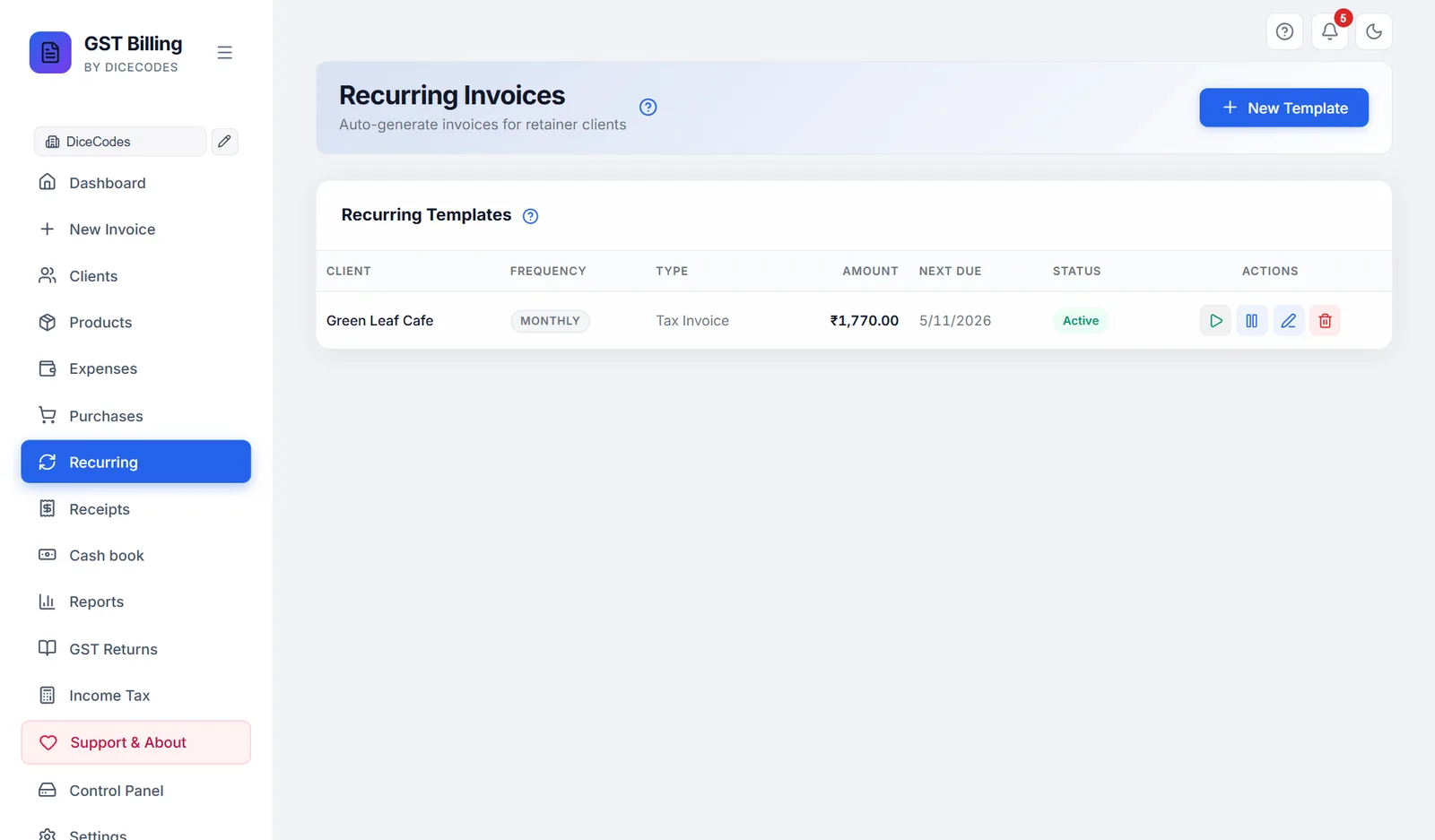
Every template of the business you are working in, by client name A to Z.
| Column | What it shows |
|---|---|
| Client | Who is billed. |
| Frequency | Weekly, Monthly, Quarterly, Yearly, or "Every 3 months" and so on. |
| Type | The invoice type made. |
| Amount | The total of each invoice, with GST, in the template's currency. |
| Next Due | When the next invoice will be made. Shown in bold orange, and the row is highlighted, when it is due today or overdue. |
| Status | Active (green) or Paused (grey). |
| Actions | ▶ Generate Now (green), Pause or Activate, the pencil to edit, the bin to delete. |
#How invoices are created automatically
A few seconds after the app starts, and then every hour while it is running, every Active template whose next date has come, and which has not reached its end, creates its invoice:
- a fresh number in that type's series (and the business's own series, if it has one);
- that day's date, status Unpaid, and a due date the same number of days later as on the invoice it was made from (none for templates made on this screen);
- the client, items and full GST working: CGST + SGST or IGST, cess, TDS/TCS, discounts and round-off, as on the invoice screen.
Its Next Due then moves on by the schedule, and it stops at its end condition. The notification bell says how many were made today ("2 recurring invoices auto-generated today"). They appear on the Dashboard, ready to check and send.
If the app was closed for a while, a missed month is not skipped: one invoice is made at start-up and one more at each hourly check, until the template has caught up. Each is dated the day it is made; change the date on the invoice if you need the missed date.
No invoice was made: check that the template is Active, its Next Due is today or earlier, it has not reached its Stop condition, and the app is running. Two invoices for one month: the template was caught up after the app was closed, or ▶ was clicked as well; delete or cancel the extra one on the Dashboard. "Invoice number ... already exists": see this fix.
#Generate Now
▶ creates the invoice straight away, even if the template is paused or not yet due, exactly as the automatic run would: same tax, a fresh number, today's date. You see "Invoice INV/2026-27/0042 generated for ..." Its next date moves on by the schedule and it counts towards "After N invoices". Once a template has reached its end, you see "Failed to generate: This template has reached its end date or number of invoices" instead. Open the new invoice from the Dashboard to check it before sending.
#Editing a template (Edit Template)
Click the pencil on a template's row. The form opens titled Edit Template, with everything filled in. Change the schedule, stop condition, type or lines and click Update. You see "Template updated". Invoices already made do not change; the next one uses the new details.
- Everything the form does not show is kept: terms, notes, invoice options, HSN codes and discounts on the lines, tax-inclusive prices, place of supply, and the client's state and country.
- Changing Next Due Date also moves the day of the month the schedule comes back to.
- Quick Select Client does not show while editing. To bill a different client, make a new template.
- Saving files the template under the business selected now, so edit it while that business is selected.
#Pause, Activate and Delete
Pause (the pause button on an Active row) stops the automatic invoices but keeps the template; you see "Paused". The button becomes Activate (a play button); click it to start again ("Activated"). If the next date passed while it was paused, the invoice is made at the next check. Use Pause for a client who stops for a few months.
Delete (the bin) asks "Delete this recurring invoice?"; click Delete template. No more invoices are made from it. Invoices already made stay on the Dashboard. This cannot be undone.
#Templates not assigned to a business
Templates saved before the app kept businesses separate show under every business. If you have any, a blue strip says, for example, "2 recurring templates are not assigned to a business", with a button Assign to followed by the business selected now. Click it only if they belong to that business; the app asks you to confirm first. See More than one business.